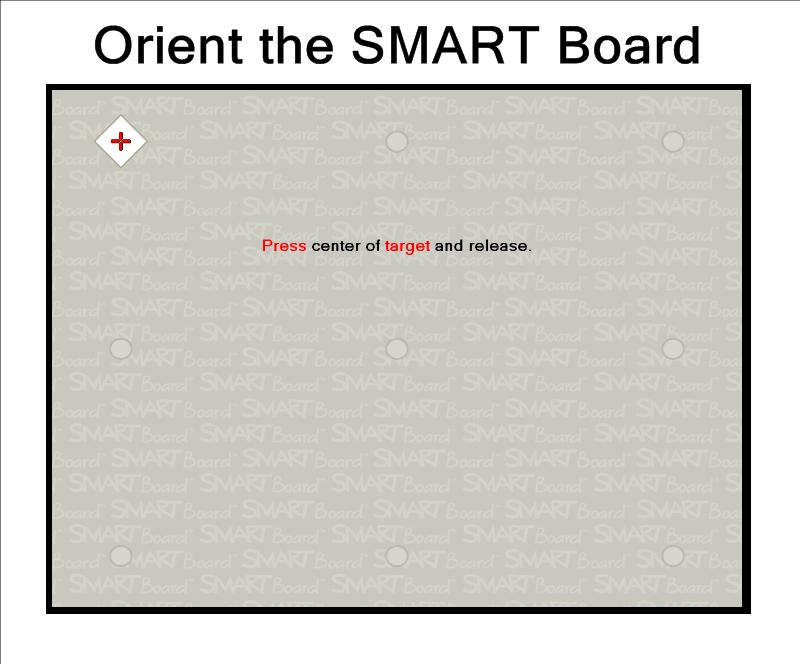
This process of orienting the screen will tell your computer where the projected image is located on the SMART Board™. I recommend orienting your board at the beginning of each school week. Some boards are mounted in an area of the school building that has more movement on the floor or roof above, which will cause the projector to become out of alignment from time to time. You can orient your board even in the middle of a lesson if you notice your point of touch is off. It will only take 10 seconds.
- On the pen tray attached to your SMART Board™, click the keyboard and mouse buttons at the same time. A gray screen will appear which will allow you to orient your SMART Board™.
- Using the pen tool tip, firmly touch the yellow center of each red + sign and release. I prefer to touch near the + sign, firmly drag my pen tool tip into the yellow center, and remove the pen when I have it perfectly centered. The SMART Board™ actually recognizes the point of release, not the first point of contact on the screen. Some teachers prefer to use a finger instead of a pen tool for orienting. Continue marking these points as they appear on the screen. A normal-sized board will have 9 points. Widescreen boards will have 12 points.
- If you make a mistake during this process, press a key on your pen tray to go back and re-do the previous + sign.
- When you finish with the last point, this orientation screen will disappear. You will be returned to the last program you had up on your computer screen.
 Kristen Foley