WeDo 2.0

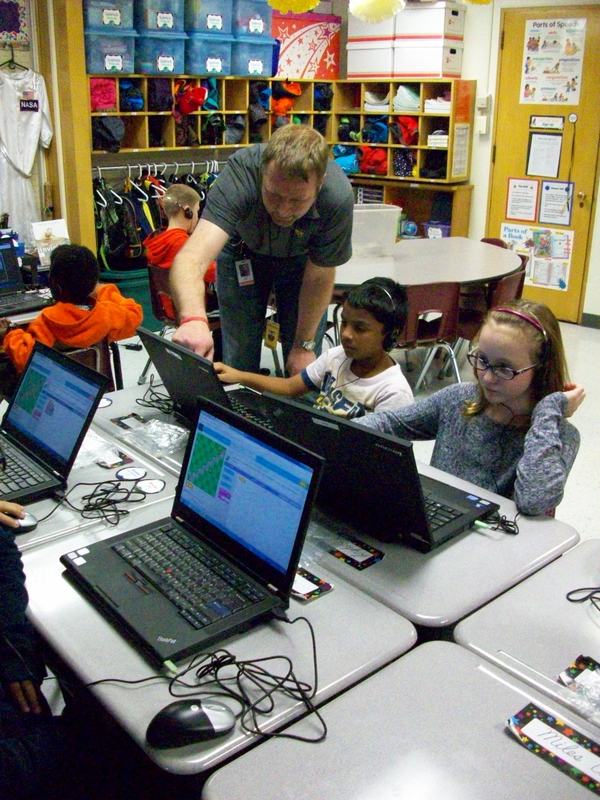
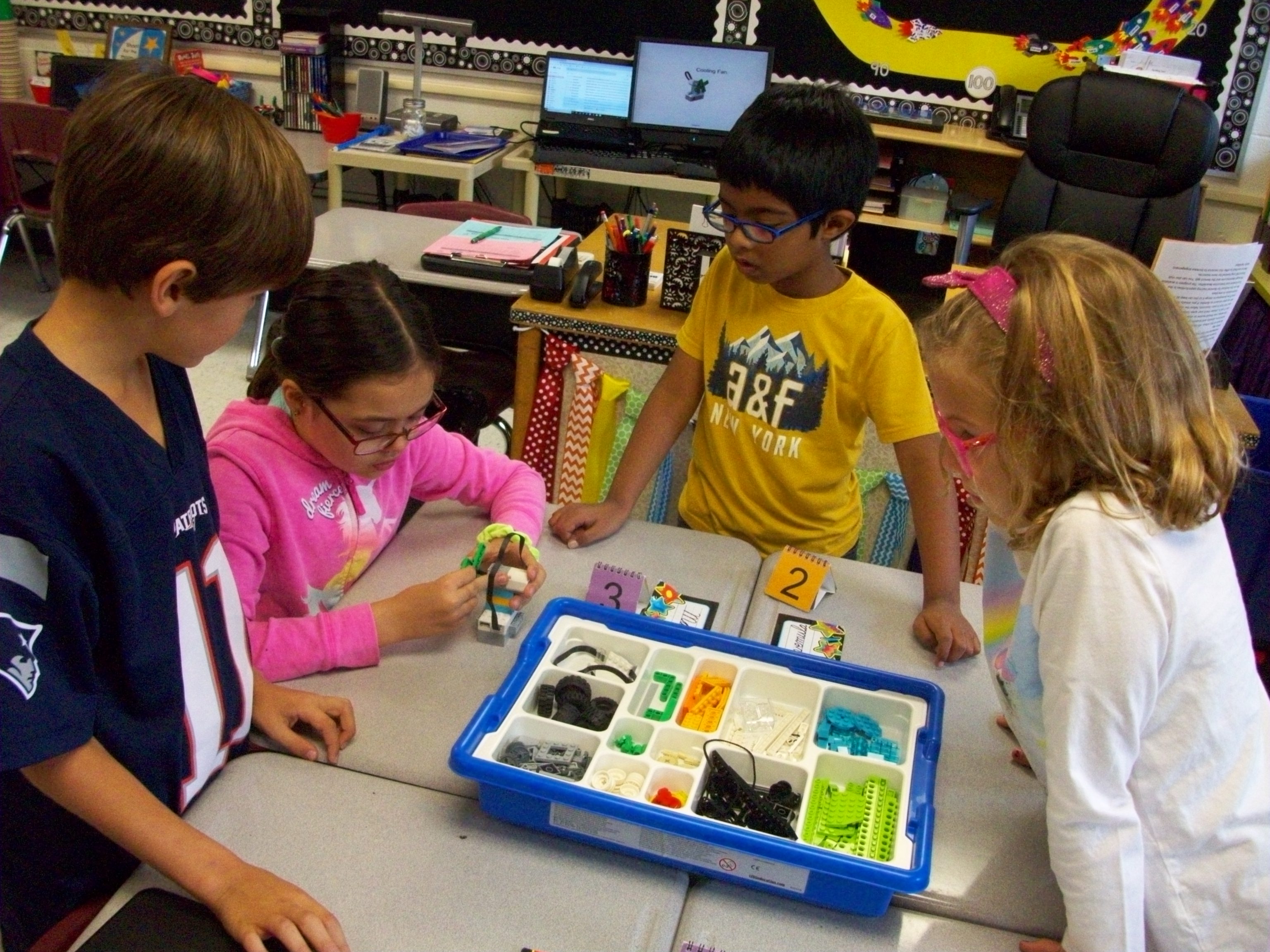
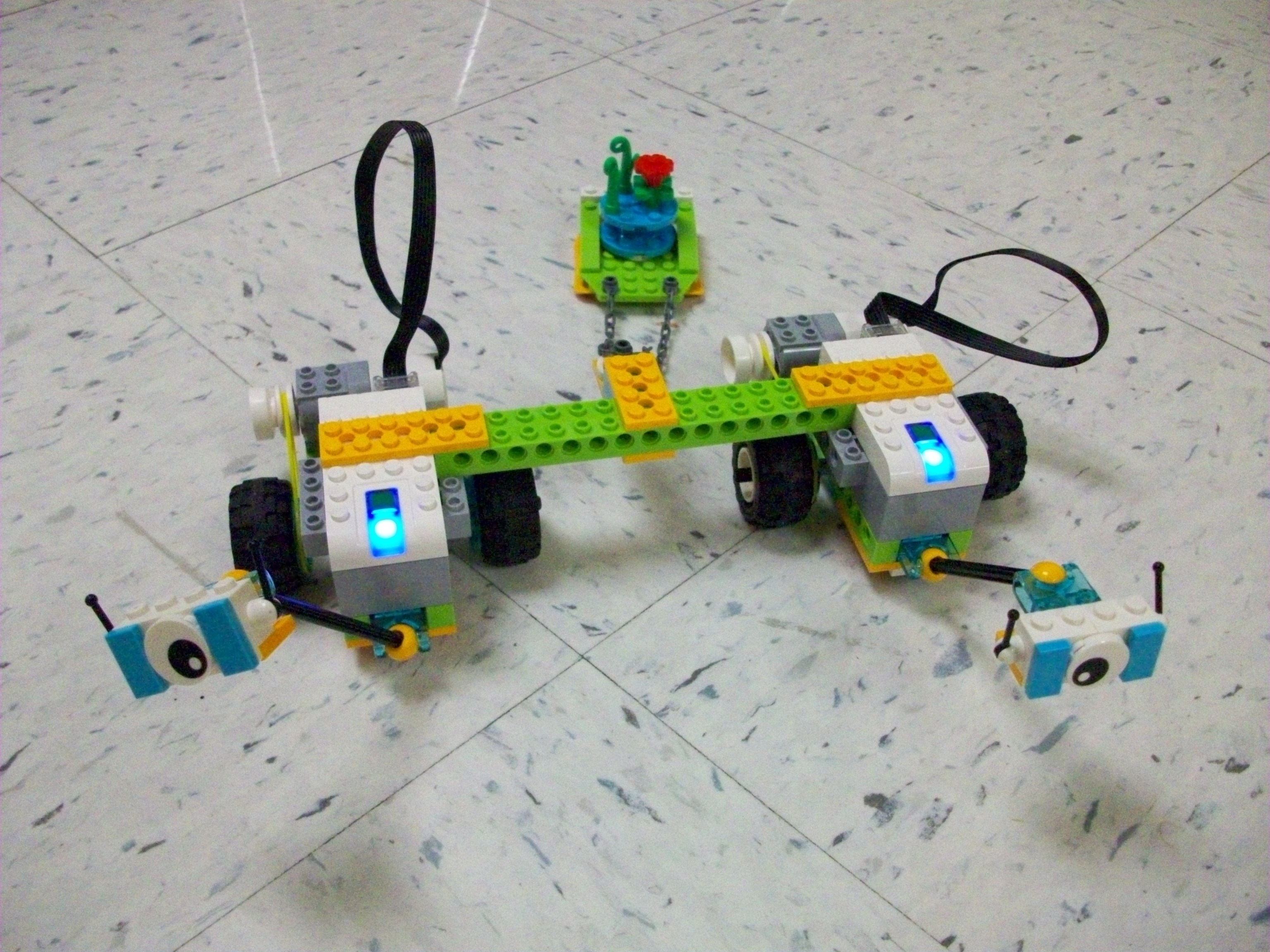
Legos in school are ok by me! Especially when they are the Lego WeDo 2.0 kits that encourage engineering, science, and collaboration. I borrowed 8 sets from our district supply for 6 weeks. Each Thursday the kids were given a task, beginning with introductory ones (fan, snail, satellite, and robot) and eventually leading to Milo and his multitude of variations. There are also more advanced challenges that align with various science learning standards. Max and Mia, two Lego characters, lead students through the steps of exploring, creating, documenting, and sharing.

When planning for the first lesson, take the time to download the Lego WeDo 2.0 software (free) on the laptops you will use (1 per group) from your app store. Or plan to walk your teams through these steps. Then be sure to use the same laptops the next time your class works with the kits. This program provides step-by-step guides and coding software.

My biggest suggestion is to space out the groups so the Bluetooth signals of the Smarthub and laptop can clearly communicate. Sometimes there can be interference between teams. Also, make sure you have a fresh set of 2 AA batteries in the Smarthub (main device with the light). To open the compartment, slide the top. (I had to look it up online because I assumed they would pop apart and wasn’t having success.)

Honestly, learning how to use the kits and deciding how to manage the groups and troubleshoot confusion or tech issues seemed overwhelming for me. However, I watched some videos online and played around with the tasks (along with some help from my school-aged daughters) before introducing them to my class. The issues of interference and weak batteries were lessons I learned in the process with my students. And though I often prefer to not have issues during instruction, I think these obstacles taught us all how to react to problems with perseverance.
Makey-Makey

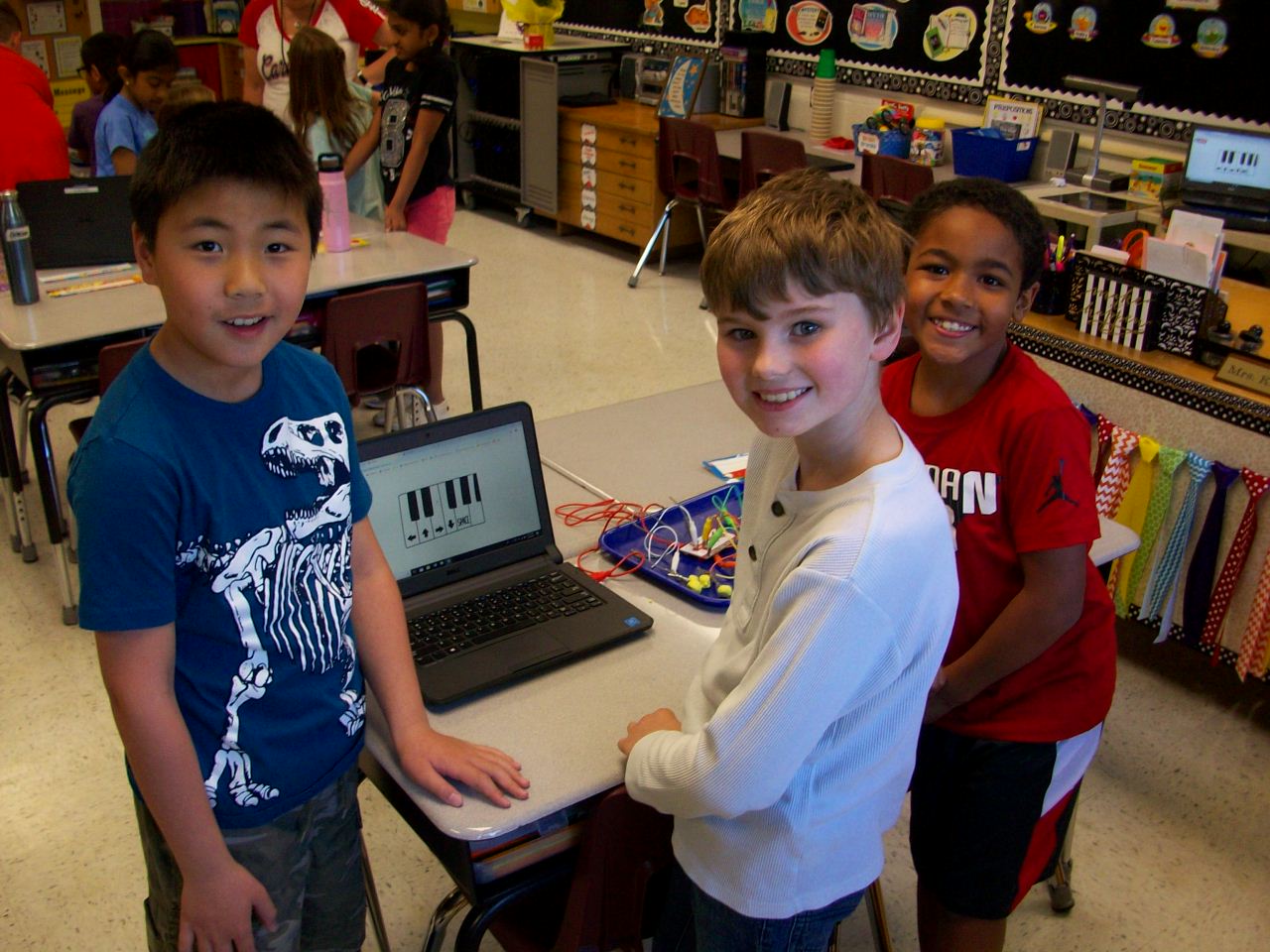
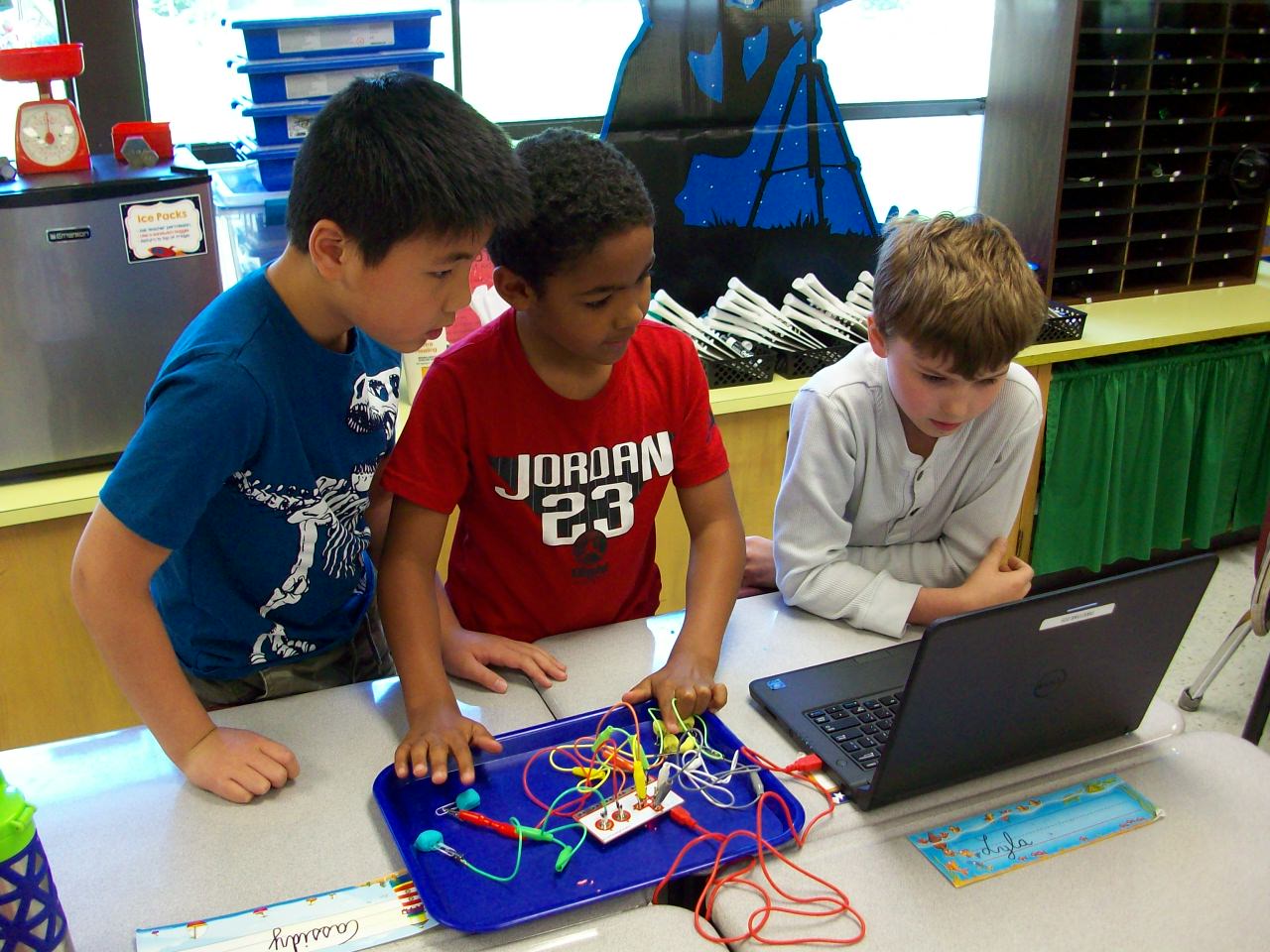
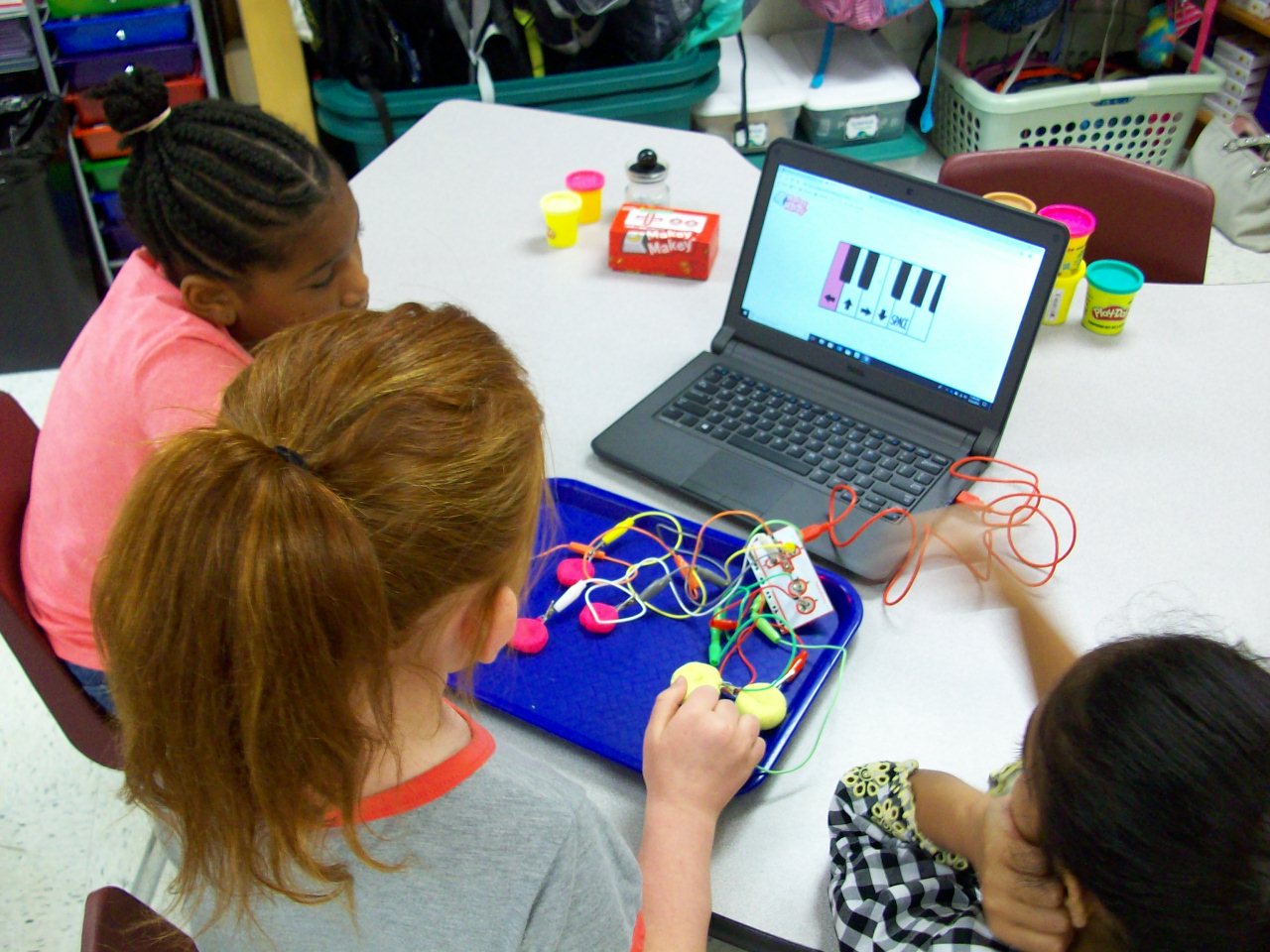
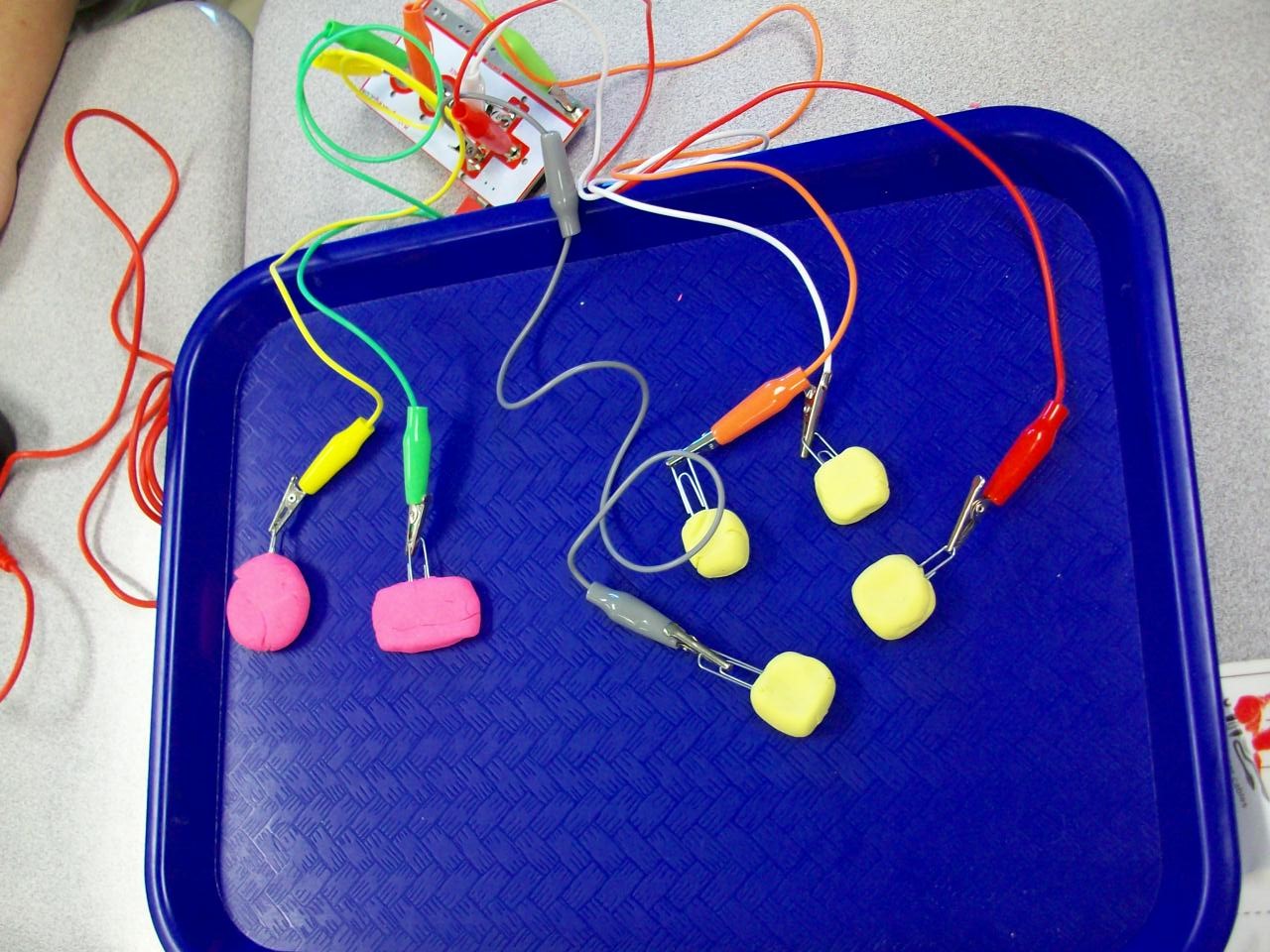
Makey Makey is the coolest! The small box contains a motherboard, wires with alligator clips on either end, and a USB cord to connect a laptop. What’s so special about these materials? In the right configuration with conductive materials (Playdoh, bananas, etc.), you can take over control of the keyboard and mouse. I introduced the Makey Makey kits with a Mrs. Foley talent show performance. Act 1: Comedy. I made a SMART Notebook file with several banana jokes. Each time I delivered the punchline, I tapped the bananas I had attached to the hidden motherboard and the bongo app I had opened played my “bu-dum-dum” rhythm. The kids saw me tap the bananas, but heard a bongo. They were confused. Seeing as how my jokes were sub par, I decided to up my game and impress the class with my classical music talents. Act 2: Piano. So I switched over to the piano app and played “Ode to Joy” on the bananas. Beautiful. Still, the kids were perplexed and I thought my performance needed to be more in line with their interests. Act 3: Video Game Master. So I pulled up the original Super Mario Bros. video game and attached a different motherboard with Playdoh chunks. Start game. Tap the Playdoh. Avoid the goombas, turtles, and ledges. Pass level 1. And soak up the cheers and laughter. This is when the class was fully on board. Because I had the motherboard and wires covered with a cloth, the kids didn’t understand what was happening. So when I revealed the devices, they were soooo curious and wanted to check it out themselves. Each team of 3 was given a box with the Makey materials, 2 containers of Playdoh, and paperclips (to keep the alligator clips from getting covered in the clay. (I opted not to give every group 5 bananas, but let them try out my set up.) They began with the bongo app and moved on to the piano app and eventually the Mario Bros. game. After the exploratory part, I asked the students to help explain how it all worked. It led into a fun discussion on electrical circuits and conductors. NOTE: The circuit only works if the “player” holds onto the “earth” alligator clip so the loop is complete. We had the best time and an hour passed in what seemed like seconds. The students were completely engaged and loved the fact that they played Super Mario Bros. at school! (I hope they explained the purpose to their parents when they boasted about their video game experience that night.)

Green Screen Puppet Shows

So, I’ve wanted to do green screen projects with my students for awhile now. But managing it seemed impossible. Until I came up with what I thought was a smaller-scale activity. As it turns out, this adventure took just as much time and effort as a full-scale human actor green screen video. But we still had a blast! Let me share what I learned along the way.

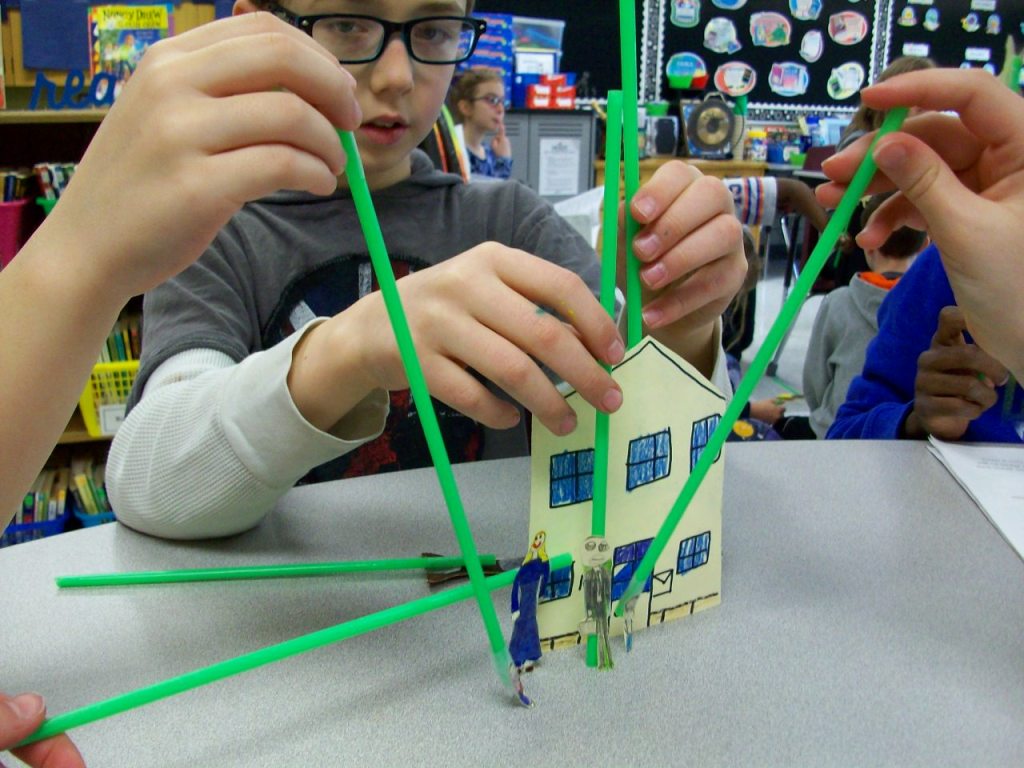
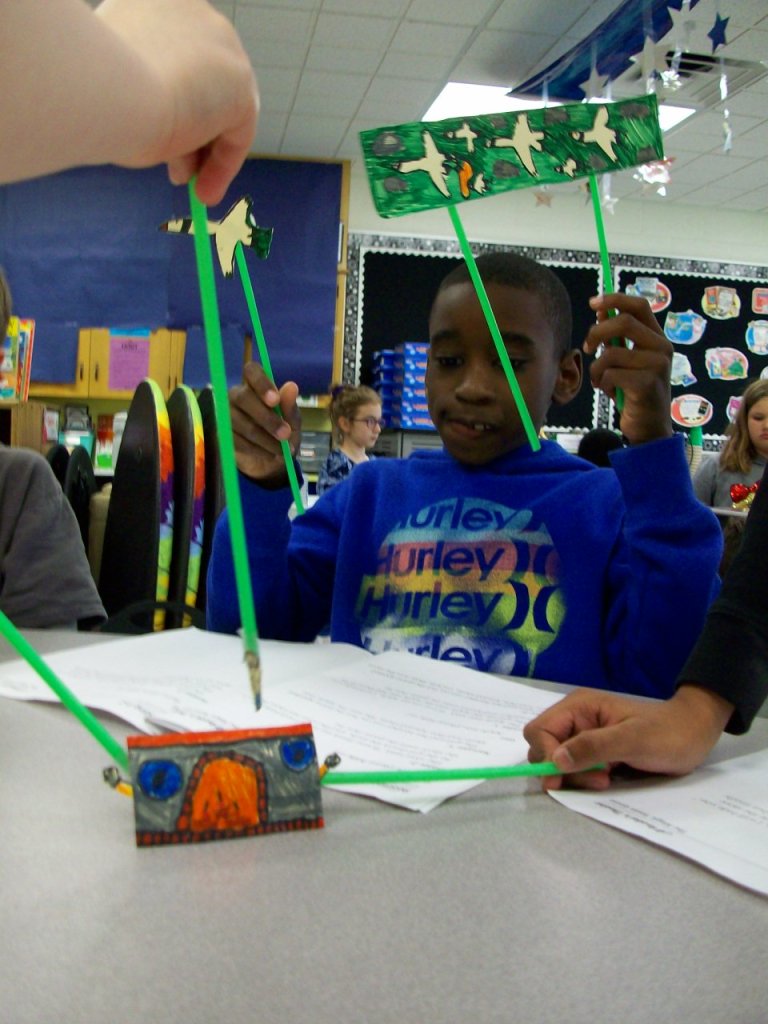
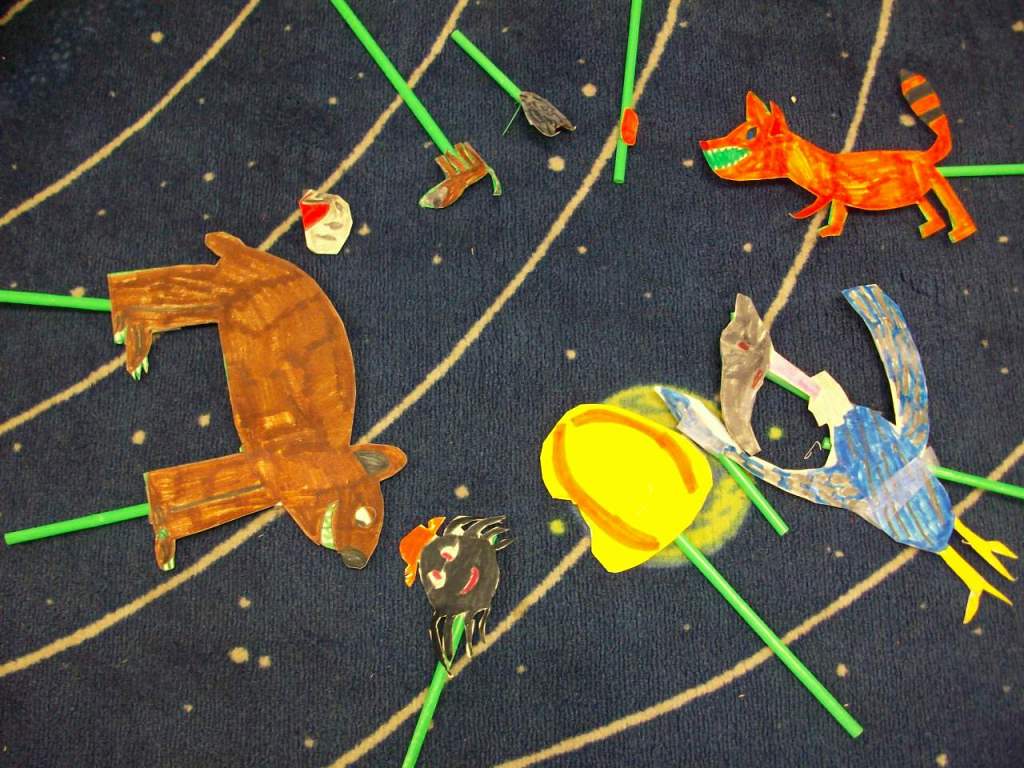
First, I do think stick puppets is the way to go over kids acting. It reduces pressure and self-consciousness. I found five folktale plays and began with groups reading independently for comprehension and then choosing parts and practicing fluency. Next, they created the puppet characters and props on a thick cardstock. TIP: Avoid green when coloring your puppets, because that part will take on the background image. If you really need green, use a different shade from your fabric. However, if you had small areas around an puppet that would be difficult to cut around, just use green and the background images should appear in that space. One of my groups were pure geniuses with this. They needed a flock of birds, but instead of making 6 individual birds, they colored green marker around the birds and cut them out as a big set. So clever! We attached green straws that matched the green background color. TIP: It’s easier to find different shades of green in fabric, so purchase your straws first, then bring one to the store and hold it up to each bolt of cloth. You’ll want them to be a very close match in order for the straws to disappear on screen.

Then the groups practiced fluency in conjunction with maneuvering the stick puppets. Since it was a small space, they had to work in close quarters. TIP: I stretched the fabric across a rolling clothes rack I typically use to hold pocket charts. Some students held puppets from either side and others reached over the top or came up from the bottom. I also let the teams pick their virtual backgrounds. We used free images from www.pixabay.com. A few groups only needed a single image for the story, but others required 2 or 3. Our district has Zoom video conferencing which has a recording option. That worked perfectly for inserting the virtual background and filming. TIP: A smooth fabric screen and good lighting is key to the virtual image looking crisp and the straws disappearing into the background. Any wrinkles in the greenscreen or an overcast day can negatively impact the quality. We often tightened the fabric and did all of our recording near our wall of classroom windows.

While one group was filming, the others had independent reading time. We had to have absolutely silence since the Zoom recording was able to pick up a lot of background sound. Some students enjoyed watching the other groups rather than reading, and I was fine with that. When all teams finished, we had a whole-class screening and shared compliments with each group. It was certainly a learning process for me, but I feel the students learned a lot about what goes into a production. For some of them, this might have been their first experience with performing arts or this kind of technology. And perhaps it opened a new door for those who most enjoyed it.

One School, One Book – Pig Podcast

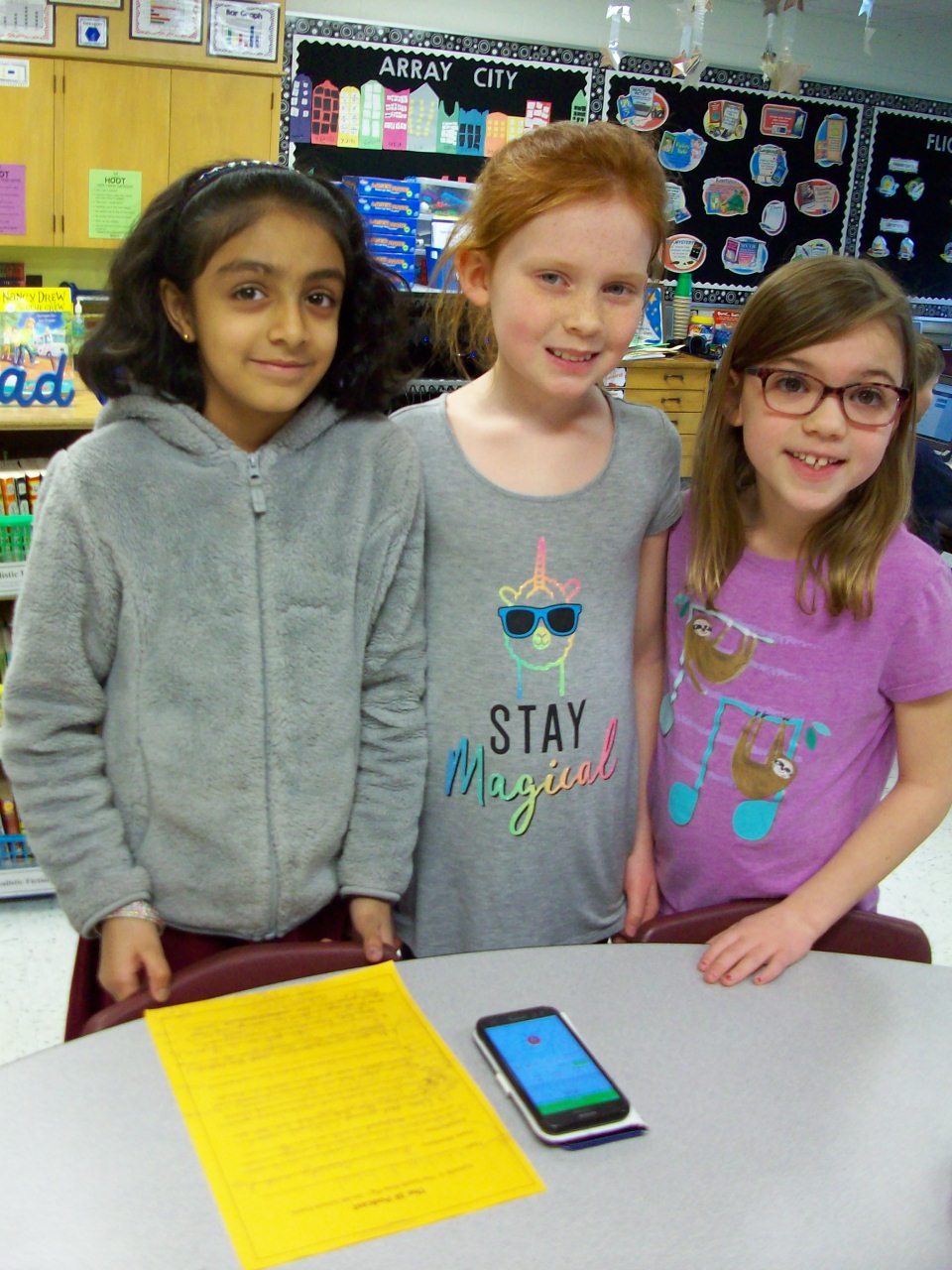
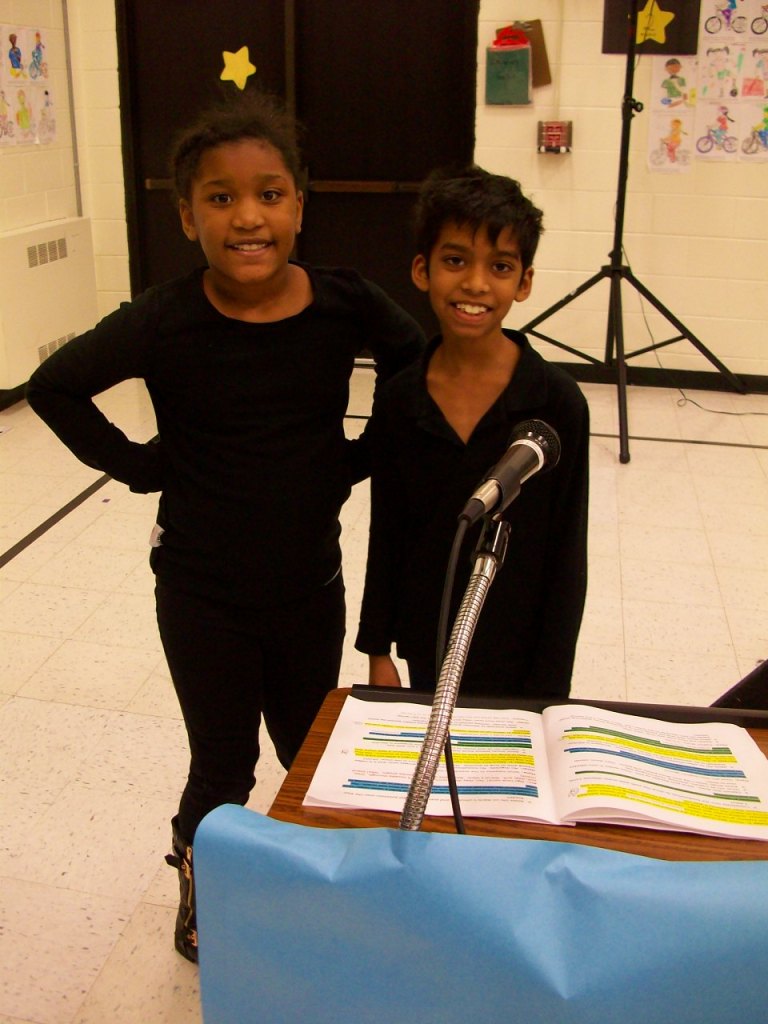
I don’t think I’ve challenged myself enough this school year. Why not try a podcast? Ok! It sounded very involved, but once I decided on using www.podbean.com (free), the rest was business as usual. As a class we brainstormed topics to highlight our all-school novel study of The Adventures of a South Pole Pig (fun characters, closing assembly play, trivia, family events, etc.) The kids chose their groups and chatted about what to include. I provided each team with a template. The worksheet had them think of a unique opening for their segment (onomatopoeia, single word, song, etc.), share 5-8 details, and wrap up with a creative closing. We used my cell phone as our recording device, and I saved each section as separate files that I later merged into one podcast on the app. I was excited to have a real audience for this project (mostly parents) and incorporate writing and speaking goals. Kids can do such grown-up things!

Readers’ Theatre – South Pole Pig

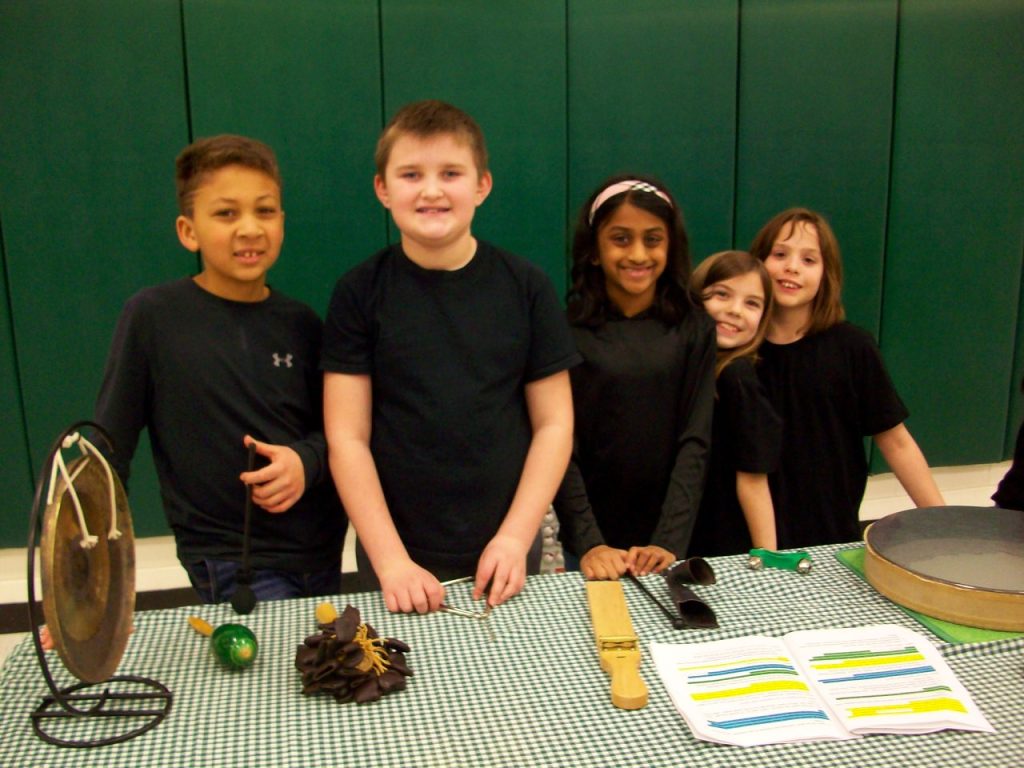
Readers’ theatre plays are my JAM! It is so much fun to take a story (in this case a 288-page novel) and turn it into a play for kids to perform. Yes, it is very time consuming–script creation, costumes, props (full-size working sled!), scenery, musical accompaniment, choral song, and choreography. Plus with the timing of it all, there is a quick turnaround for the students to learn the parts because the closing assembly is right as everyone finishes the book. (I had to read the last week’s chapters on Monday and Tuesday in order to give my students time to practice the final pages of the script prior to the performance on Friday afternoon.) Two parents volunteered to make their children’s costumes, and that helped a lot! And our wonderful music teacher took my lyrics and set them to a beautiful melody. This production was quite a feat, but so magical! Aren’t they the cutest!

Coding!

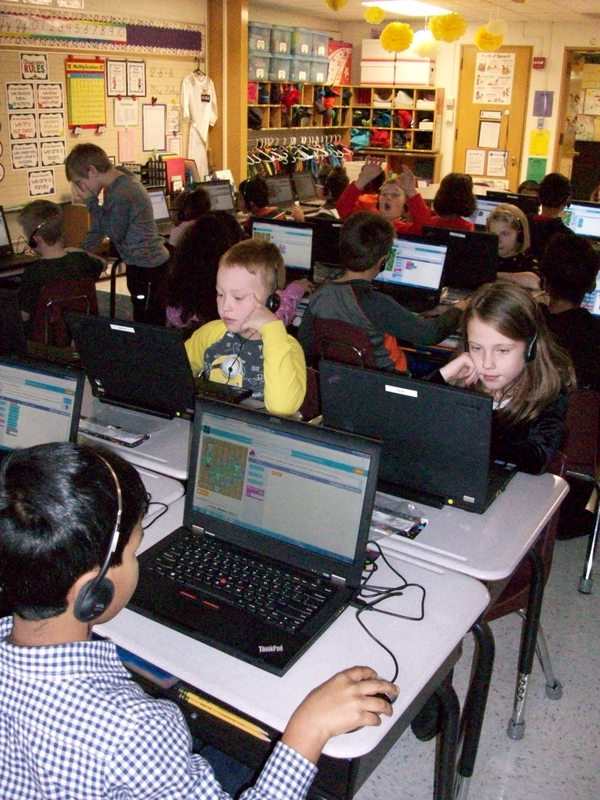
Don’t be afraid of coding! I was. So I enlisted the help of a co-worker’s husband who does it for a living. He was great at helping us ALL get our feet wet! During “Hour of Code” week, Mr. H came to our classroom and explained what coding is and how we use it every day. The www.hourofcode.com website was perfect for the kids to explore coding in a video-game style format. The coding blocks and trials allowed the kids to take chances and learn from any mistakes. They took on each leveled challenge and persevered through any obstacles by trying again or asking for help. No one gave up, pouted, or cried . . . not even me! It was a great experience for everyone. And we don’t need to wait until next December’s “Hour of Code” week to do it again. We can explore coding anytime, because we know it’s nothing to be afraid about!

Die for Smooth Transitions

Lining Up Die

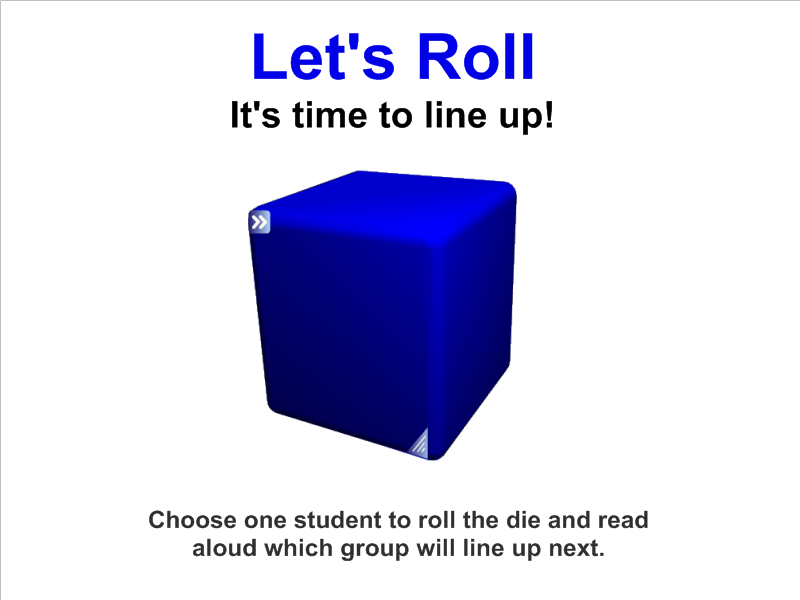
One of the greatest challenges for teachers is smooth transitions between activities.  We often loose control of the class to chatter and chaos when we ask them to move from one location to another.  In the SMART Notebook gallery, you will find a variety of dice.  Choose one that can be edited.  I prefer to label the six sides with table 1, table 2, table 3, etc.  A student helper taps the die, and the next group to line up is decided.  The students remain quiet as they anticipate the next roll.  Movement is done in small chunks and so much time and energy is saved!  Give it a roll in your classroom.  You’ll just “die” for these smooth transitions!

Checklists

LMC Checklist

Think about all of the things you repeatedly say throughout the week.  Think about all of the kids who are visual learners.  Now think about how much time and breath you’ll save by making simple to do lists or checklist for your students using SMART Notebook!  I prefer to use 3-5 simple statements coupled with a clipart image for each.  The students will become so use to seeing and following the routine directions that you’ll smile and pat yourself on the back.

Basic Operation and Care

Components

The computer sends an image to the projector through a RGB or VGA cable.  The projector transmits the image onto the interactive whiteboard.  The board relays any input messages (use of pen tools or hand) to the computer through a USB cable.

When you press the board with a pen tool or your finger, the top layer of the screen makes contact with the back layer of the screen.  Press with intent to ensure that your actions are recognized by the back layer.


Safety

  • Never look directly at the projector’s light beam.
  • Never touch the projector. It can become very hot during operation.
  • Never use a chair to increase a student’s reach on the SMARTTM board.
  • Never use other writing utensils (markers, pencils, ink pens, etc.) on the board. Keep these materials and others (scissors, liquids, etc.) away from the area.
  • Be mindful of cords and the legs on portable models.


Cleaning and Orienting

Glass PlusR Multi-Surface Cleaner and a soft paper towel or cloth are recommended for cleaning the board.  This should be done as needed.  Try to make it a habit to clean and orient your board once a week.


Etiquette

Only one user can touch the board at a time.  Since only one point of contact can be recognized by the board, so you may need to adjust how you hold the pen tools when writing.  Do not rest your hand on the board.  If you are right-handed, it is best to stand on the right side of the board.  This way your body will open up to your audience.


The Pen Tray

The four SMARTTM Board pens are simply hollow plastic tubes.  Optical sensors on the pen tray notify the computer when a pen is removed.  If you pick up two or more tools without returning the others, the board will recognize the last tool selected.

One pen try button will launch the keyboard.  The second button allows you to access right-click.  Pressing them both at the same time will open the orientation screen to align the board with the projector.


Indicator Lights

The status light (ready light) is located on the bottom right side of your SMARTTM Board.

Color of Light

       Status

Not Lit
  • The board does not have power.
  • Check the USB connections.
Solid Green
  • The board is communicating with the computer
Flashing Green
  • The SMARTTM  Board driver isn’t installed, or it isn’t running.  Try installing it from www.smarttech.com.
  • If it continues to flash, contact your SMARTTM support representative for assistance.
Solid Red
  • The board has power, but it is not communicating with the computer.
  • The light briefly turns red while powering up.  This is normal.
Flashing Amber
  • This occurs when you are updating firmware.  This is normal.
Solid Amber
  • This signifies a problem state.  Try disconnecting and reconnecting the USB cable at the board.


Got Wordle?

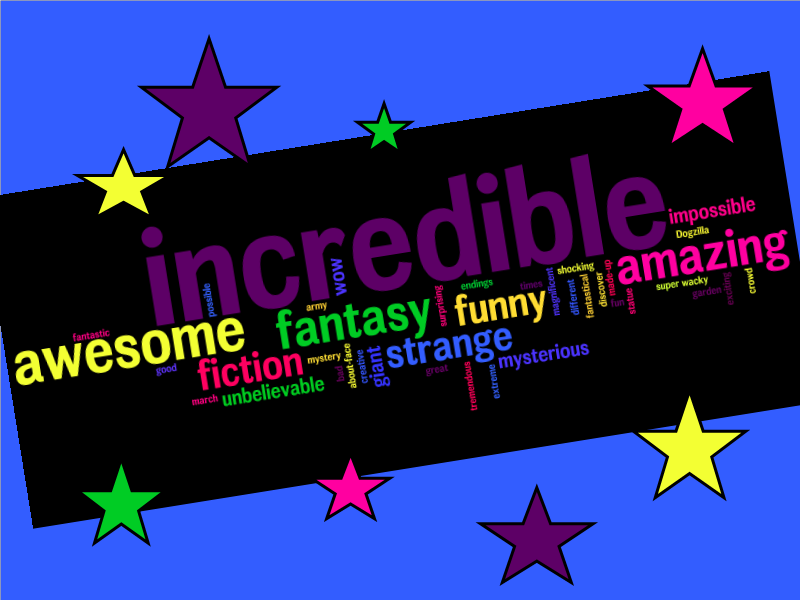
Wordle

Wordle, www.wordle.net, is a website for creating word clouds.  Simply type in a series of words using commas.  The more often the word is included, the larger it will appear in the final word cloud.  Then customize the themes, fonts, and colors.  Use the SMART camera tool to take a picture and add it to your SMART file.  There are a variety of classroom applications.  Ask your students to write down five words to describe a character from a story, a scientific concept following the unit of story, or an upcoming holiday.  This can be an individual or small group task.  Or create a Wordle on a topic of study and use it to preview the chapter.  Students can view it and make connections to prior knowledge.  Or type each of your student’s names to create a class word cloud that can be an image on your classroom website or your classroom computer’s desktop background.  TIP:  Type your words in a Word document and paste them into the field on the site.  Because if you decide to “go back” and add, delete, or change words, you will be sent back to the home page.  Your work is not saved on the site.  Also, for two words that you’d like to stay together such as United States, put a ~ between the words (United~States).