Group Generator

Group Generator

I love the random group generators available in the SMART Notebook gallery.  After searching “random,” look under the “multimedia” category.  I use the one pictured above and include student numbers rather than names.  Since this grouping tool is part of many different SMART files (reading, math, science, writing), I want to keep it general enough to be used year after year.  After entering number/names, chose the number of groups you’d like to make.  Then “generate” to see the random groupings.  If a student is absent and you want to remove his/her number/name, do this on the first page before generating.  Then be sure you don’t leave an empty fields.  The function will only group the students prior to the open slot.  The quick fix it to move the last number/name of your class into the empty spot.

Communication Cups

Grab some red, yellow, and green Solo cups (or any brand will do) and improve your small group communication! I have each team take a set of three colored cups when they set off to start groupwork. They begin with a green cup on top. If they need teacher assistance, they move the yellow cup to the top. This is a signal to me that I need to check in with that group soon. If a red is on top, that means the group needs me right away and cannot move forward in their work until I stop by and answer a question. By using these communication cups, I can scan the room and identify when group I will go to next.

Pete’s Presentations

Phillip Martin has outdone himself with his collection of sites offering educators FREE PowerPoint presentations, education websites, and clipart.  The main site, Pete’s PowerPoint Station, has links to numerous resources.  I’d recommend viewing all of the themes and topics at Pete’s Presentations because you can look at all of the possibilities.  Sub-sites include Gretta’s Game Station and Hannah’s Homework Help Station.  Don’t miss the clipart link.  Mr. Martin’s unique, colorful cartoon style appeals to all children.

As long as you use it for your classroom (newsletters, website, interactive whiteboard lessons, self-made worksheets, etc.), these amazing resources are yours at no cost.  He does ask that you tell someone else about the site.  I’d say that is the least we can do to thank Mr. Martin for his outstanding artistry and organization.  This is a teacher’s jackpot!

Pete’s Presentations
http://www.pppst.com/themes.html

Gretta’s Games
http://games.pppst.com/index.html

Hannah’s Help
http://resources.pppst.com/index.html

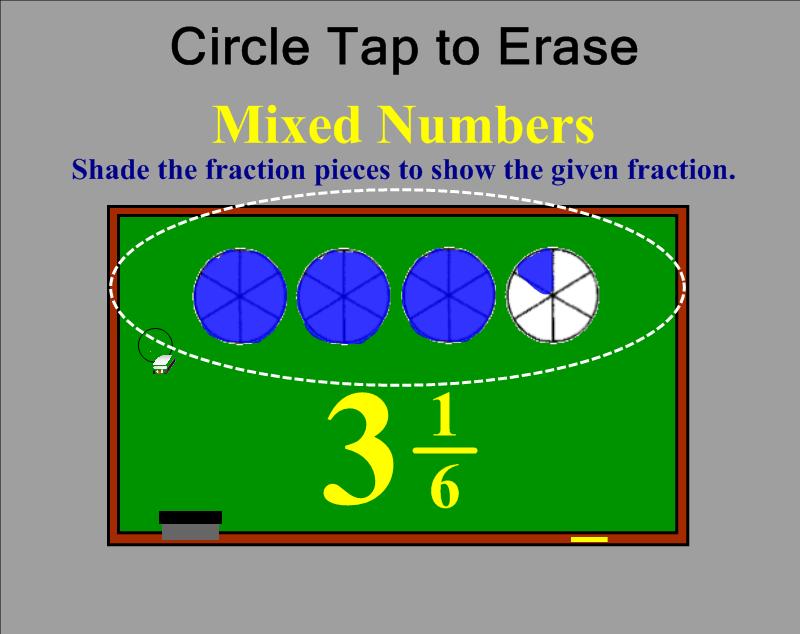
Circle Tap to Erase

Do you need a shortcut for erasing a large area of writing on your SMART Board™?  Try “Circle Tap” to erase words or drawings created with a pen tool.

  • Make a complete circle on the board using the eraser around an area with writing.  You can use the actual eraser tool in your hand or by clicking on the eraser in your top toolbar.  Make sure the circle ends wear you began.  And don’t dawdle.  If you take too long to draw the circle with your eraser, this will not work.
  • Tap firmly in the center of the invisible circle you drew.  Your writing within that area will disappear.
  • This will only work on words or drawings that were created with a pen tool.  Typed text, shape tool objects, graphics, etc. will remain on the page.
  • This skill sometimes takes new users a few attempts to master.  Remember . . . draw complete circle with the eraser tool and firmly tap in the center.

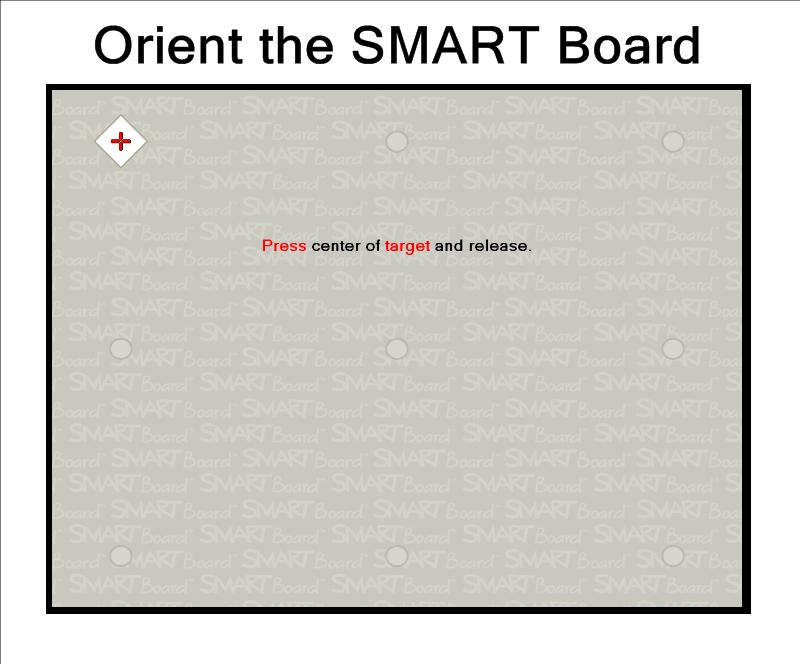
Orienting the Board

This process of orienting the screen will tell your computer where the projected image is located on the SMART Board™.  I recommend orienting your board at the beginning of each school week.  Some boards are mounted in an area of the school building that has more movement on the floor or roof above, which will cause the projector to become out of alignment from time to time.  You can orient your board even in the middle of a  lesson if you notice your point of touch is off.  It will only take 10 seconds.

  • On the pen tray attached to your SMART Board™, click the keyboard and mouse buttons at the same time.  A gray screen will appear which will allow you to orient your SMART Board™.
  • Using the pen tool tip, firmly touch the yellow center of each red + sign and release.  I prefer to touch near the + sign, firmly drag my pen tool tip into the yellow center, and remove the pen when I have it perfectly centered.  The SMART Board™ actually recognizes the point of release, not the first point of contact on the screen.  Some teachers prefer to use a finger instead of a pen tool for orienting.  Continue marking these points as they appear on the screen.  A normal-sized board will have 9 points.  Widescreen boards will have 12 points.
  • If you make a mistake during this process, press a key on your pen tray to go back and re-do the previous + sign.
  • When you finish with the last point, this orientation screen will disappear.  You will be returned to the last program you had up on your computer screen. 

Graffiti Wall

I sometimes use a traditional paper graffiti wall to accompany a novel study, read aloud, or thematic unit.  It gives students an opportunity to express their thoughts in words and pictures and promotes a written discussion.  The SMART™ Board takes this activity to another level.  For a chapter book, you can have multiple SMART Notebook™ pages, one for each chapter.  The larger electronic version of a graffiti wall also allows you to more easily discuss posted comments and questions with the entire class.  It can be left up for students to use while the teacher reads aloud, during silent reading, or as a literacy station activity.

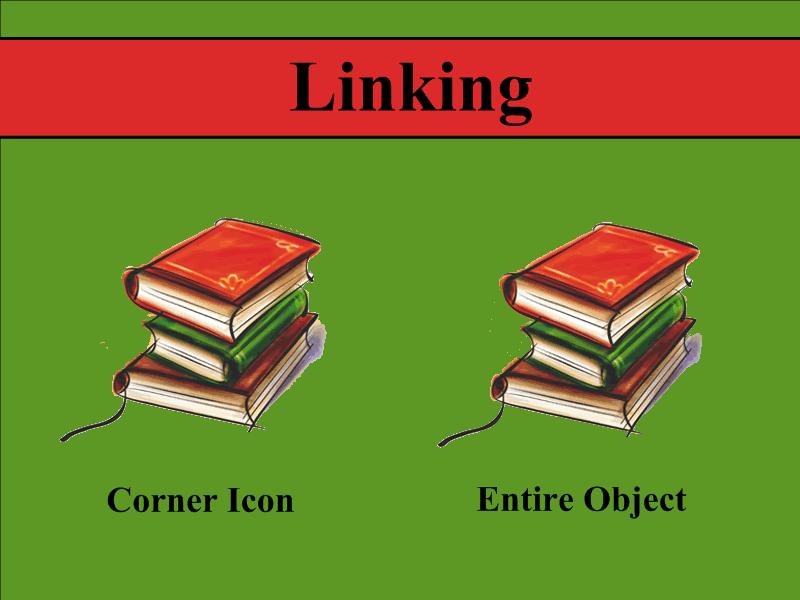
Linking

  • Add a hyperlink to a website, an attachment, or another page within your file by first selecting your text or image.  A blue line will appear around it to signify it was selected to have an action performed.
  • Using the drop-down arrow, select “Link.”
  • Paste or type in the web address.
  • Decide how you’d like your hyperlink to launch.  Your choices include “Corner icon” or “Object.”
  • Choose “Corner icon” to click directly on a small globe, paperclip, or page icon.
  • Choose “Object” to click anywhere on the text or image.
  • To remove this feature, click once on the image or text.  A blue line will appear around it to signify it was selected to have an action performed.  Use the drop-down arrow to select “Link” and “Remove Link.”

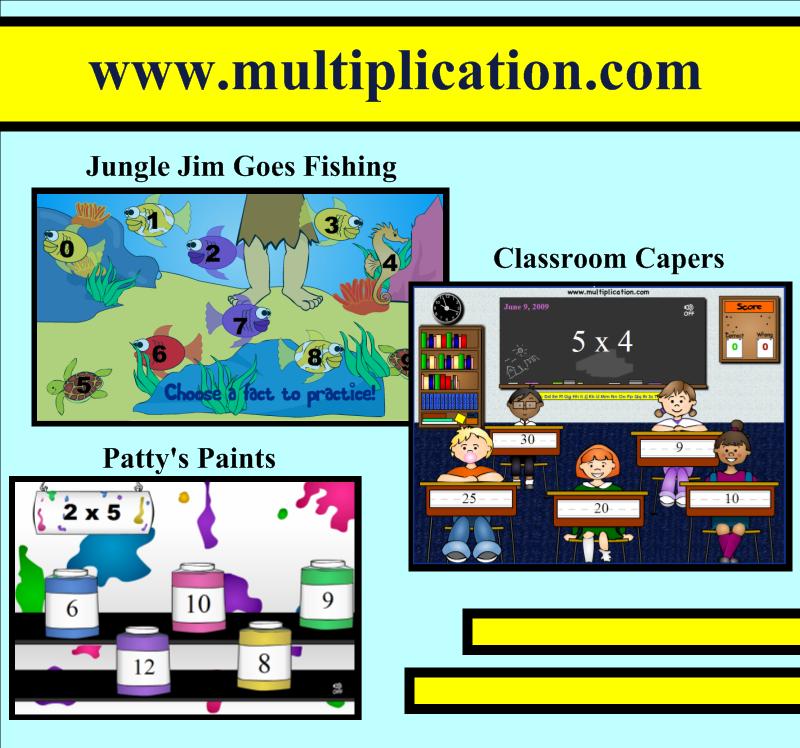
www.multiplication.com

If you are a teacher or parent of a school-age child, www.multiplication.com is the best site I’ve found for practicing the basic X facts.  This site includes worksheets, timed tests, hands-on classroom games, and flash cards, but the real treasure is the assortment of interactive computer games for learning individual fact families.  While mixed practice is also available, it’s wonderful to focus on just the recently introduced fact family.  The plethora of games includes “Classroom Capers,” “Jungle Jim Goes Fishing,” and “Patty’s Paints.”

I like to model a new game for the entire class each week.  Then, while the students complete a practice worksheet on the fact family we are currently learning, one student goes to the SMART™ Board to play the game and another watches and waits in the batter’s box.  For some games, the student can take the full timed minute to try to answer as many questions correctly and attempt to earn a high score.  In these cases, the game becomes a competition amongst the students.  Other games may require a limit of 5 problems per student, because the rounds take several minutes to complete.  It may also depend on the amount of time you can set aside and the number of students in your classroom.  I find that as students finish the independent worksheet, they watch their classmates at the SMART™ Board.  This allows the other students to finish their paper assignment at their own pace, and keeps early finishers engaged.

Seating Chart

Seating Chart

Do you still make paper and pencil seating charts?  Now with SMART™ Notebook, you can create a template of your classroom floor plan and manipulate the students’ names whenever you feel it’s necessary to switch things up.  It also eliminates the need for the teacher to move the desks after school.  Let the students view the setup and work with a partner to move desks to the new arrangement.
 

The First Way to Bulid Your Seating Chart

  1. Use the square drawing tool to make a desk.  Add a fill color (tan) to the square, if you’d like.  Use the infinite cloner option by clicking on the drop-down arrow of the first desk.  Drag 24 (or the maximum number of students in your room) squares from the original.  Remove infinite cloner from the first square.  Position the desks in the arrangement you would prefer.  Lock them in place so that they don’t move accidently when you attempt to adjust the name textboxes later on.
  2. Add shapes for necessary furniture, the SMART™ Board, or the classroom door if you’d like.
  3. Make one textbox with your longest students’ name.  Use the “Infinite Cloner” option by clicking on the drop-down arrow of the textbox.  Drag 24 (or the maximum number of students in your room) textboxes from the original.  Remove infinite cloner from the first name.  Position the names on each desk.  Double-click on each textbox to change the name.
     

The Second Way to Build Your Seating Chart

  1. Use the square drawing tool to make one desk.  Add a fill color (tan) to the square, if you’d like.  Use the infinite cloner option by clicking on the drop-down arrow of the first desk.  Drag 4 (or the maximum number of students in a table group or row) squares from the original.  Remove infinite cloner from the first square.  Position the 4 desks in the table or row arrangement you would prefer.  Group the table or row of desk by marquee selecting them all, choosing one of the drop-down arrows, and selecting “Grouping” and the sub category of “Group.”  Infinitely clone this group of desks until you’ve filled the page with the maximum number of tables or rows you need. Position them before marquee selecting all of the tables or rows and “Locking” them in place so that they don’t move accidently when you attempt to adjust the name textboxes later on.
  2. Add shapes for necessary furniture, the SMART™ Board, or the classroom door if you’d like.
  3. Make one textbox with your longest students’ name.  Make 4 textboxes by using the “Infinite Cloner” option.  Position the 4 textboxes in one of the table or row arrangements.  Group these four textboxes (not the desks) marquee selecting them all, choosing one of the drop-down arrows, and selecting “Grouping” and the sub category of “Group.”  Infinitely clone this group of 4 textboxes until you’ve filled the page with the maximum number of names you need. Remove infinite cloner from the first group of textboxes.  Position the textboxes (grouped) on each table or row before selecting “Grouping” and “Ungroup.” Double-click on each textbox to change the names.

Infinite Cloner

Infinite Cloner

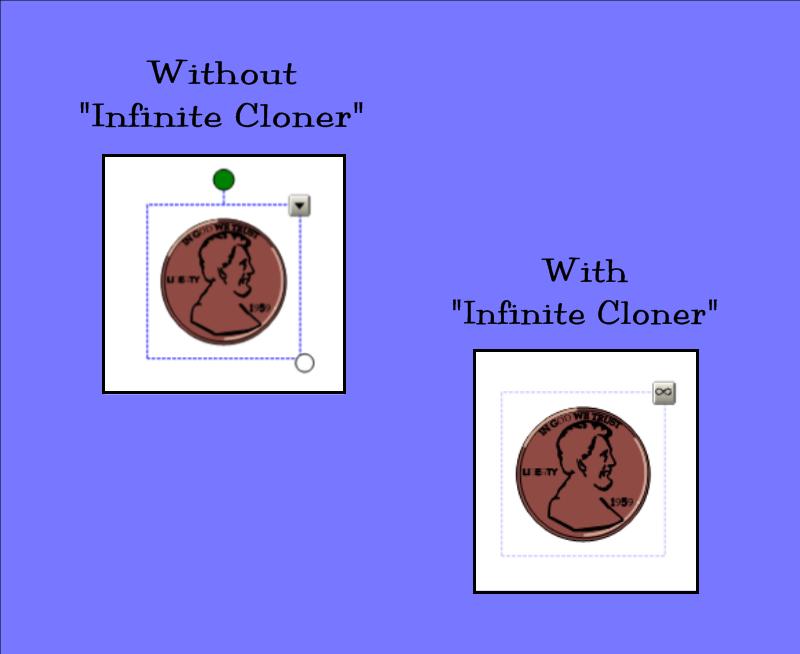
Do you want students to have an infinite bank of coins to use in a SMART™ Board activity?  Do you need many textboxes to create and manipulate individual student names?  Save yourself time and/or space on SMART™ pages by using the “Infinite Cloner” function.

  • Click on your image or text.  A dotted blue line will appear around it to signify it was selected to have an action performed.
  • Using the drop-down arrow in the upper right corner of the selected text or image, choose “Infinite Cloner.”
  • Now you can create duplicates by simply dragging the image or text to a new area of the page.
  • To remove, click on the image or text and a dotted, blue line will appear.  Click on the infinity symbol in the upper right corner of the image or text.  Then click on the words “Infinite Cloner” to uncheck and stop the infinite cloner function.