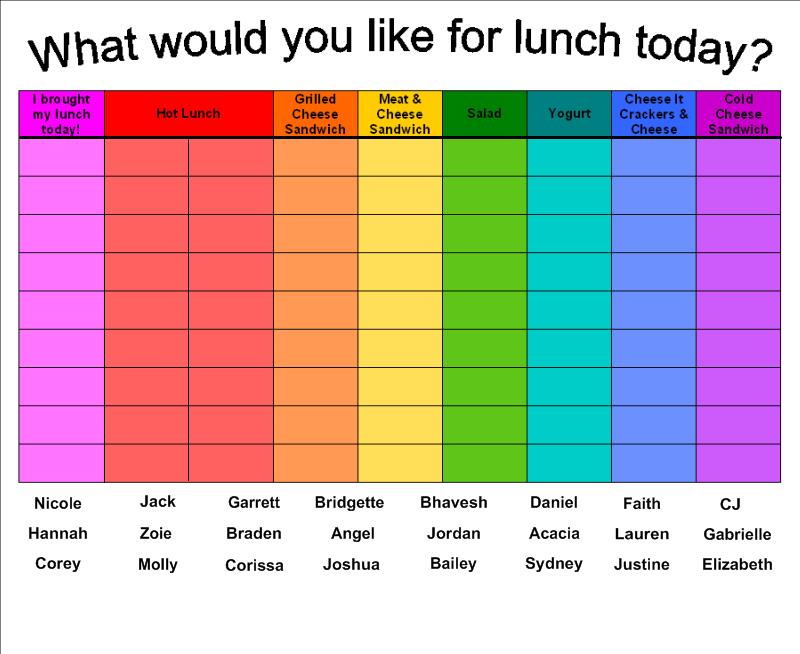
Do you still make paper and pencil seating charts? Now with SMART™ Notebook, you can create a template of your classroom floor plan and manipulate the students’ names whenever you feel it’s necessary to switch things up. It also eliminates the need for the teacher to move the desks after school. Let the students view the setup and work with a partner to move desks to the new arrangement.
The First Way to Bulid Your Seating Chart
- Use the square drawing tool to make a desk. Add a fill color (tan) to the square, if you’d like. Use the infinite cloner option by clicking on the drop-down arrow of the first desk. Drag 24 (or the maximum number of students in your room) squares from the original. Remove infinite cloner from the first square. Position the desks in the arrangement you would prefer. Lock them in place so that they don’t move accidently when you attempt to adjust the name textboxes later on.
- Add shapes for necessary furniture, the SMART™ Board, or the classroom door if you’d like.
- Make one textbox with your longest students’ name. Use the “Infinite Cloner” option by clicking on the drop-down arrow of the textbox. Drag 24 (or the maximum number of students in your room) textboxes from the original. Remove infinite cloner from the first name. Position the names on each desk. Double-click on each textbox to change the name.
The Second Way to Build Your Seating Chart
- Use the square drawing tool to make one desk. Add a fill color (tan) to the square, if you’d like. Use the infinite cloner option by clicking on the drop-down arrow of the first desk. Drag 4 (or the maximum number of students in a table group or row) squares from the original. Remove infinite cloner from the first square. Position the 4 desks in the table or row arrangement you would prefer. Group the table or row of desk by marquee selecting them all, choosing one of the drop-down arrows, and selecting “Grouping” and the sub category of “Group.” Infinitely clone this group of desks until you’ve filled the page with the maximum number of tables or rows you need. Position them before marquee selecting all of the tables or rows and “Locking” them in place so that they don’t move accidently when you attempt to adjust the name textboxes later on.
- Add shapes for necessary furniture, the SMART™ Board, or the classroom door if you’d like.
- Make one textbox with your longest students’ name. Make 4 textboxes by using the “Infinite Cloner” option. Position the 4 textboxes in one of the table or row arrangements. Group these four textboxes (not the desks) marquee selecting them all, choosing one of the drop-down arrows, and selecting “Grouping” and the sub category of “Group.” Infinitely clone this group of 4 textboxes until you’ve filled the page with the maximum number of names you need. Remove infinite cloner from the first group of textboxes. Position the textboxes (grouped) on each table or row before selecting “Grouping” and “Ungroup.” Double-click on each textbox to change the names.

 Kristen Foley