BrainPOP

BrainPOP

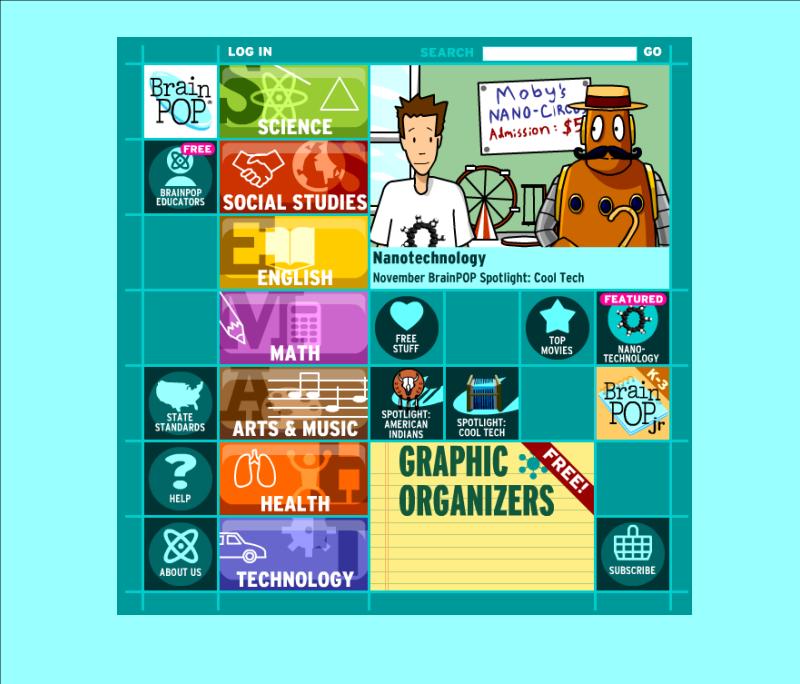
Let Tim and Moby escort you and your students on a topical adventure! Use these approximately two- to five-minute animated videos at BrainPOP to enhance your reading, writing, English, math, science, social studies, art, music, technology, etc. lessons. The best feature is the ten-question multiple-choice quiz that follows each video. Get all of your students involved in responding to these comprehension checks! Activity ideas and worksheets accompany each topic as well. This is one of my favorite sites to support the skills and topics of study I teach. While you’ll need to purchase a subscriptions to fully take advantage of this site (and its partner sites BrainPOP, Jr. and BrainPOP, Espanol), there are several free videos. Click on “Free Stuff” to see it all. BrainPOP, Jr. is intended for K-3 grades and BP is geared toward 3-12 grades. Preview the video you think you’d like to show before airing it. Sometimes the vocabulary and content is too challenging for my third graders, so not all videos are appropriate to show.  You’ll also want to register for the free “BrainPOP Educators.”  Gain access to all of the activity pages, various graphic organizers, ideas for using BrainPOP in your classroom, and a lot more!
Erase to Reveal

Erase to Reveal

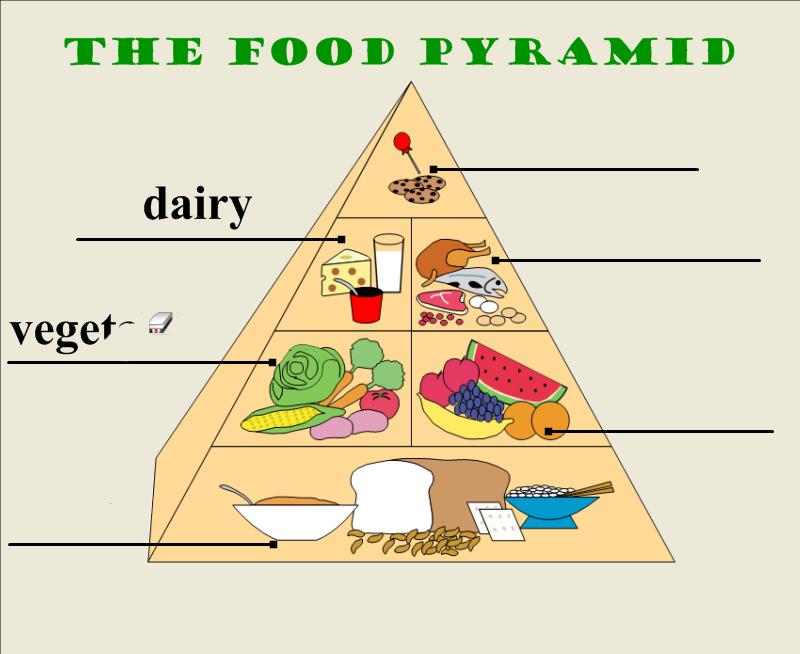
Using a SMART Board™ certainly motivates and engages learners of all ages.  After awhile, you may find it more challenging to keep their interests piqued.  Spice up your Notebook™ lessons by including the “Erase to Reveal” trick.  Follow the three simple steps below.   

1.  Select a pen color that matches your background.

2.  Color over the text you’d like to hide with that pen color.

3.  Use the eraser to remove the ink and reveal the hidden text.

Try having the entire class concentrate really hard on the right answer.  Then ask a student to rub the eraser tool over the area to reveal the answer.  They’ll think it’s magic!  Kids love to be entertained by their teachers and get involved in lessons.  “Erase to Reveal” does both!

Lunch Count

Lunch Count

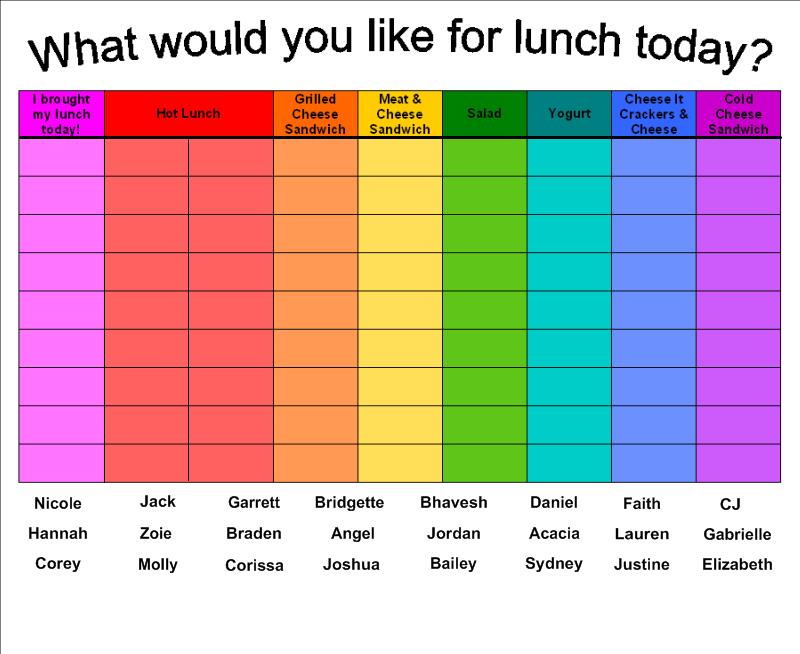
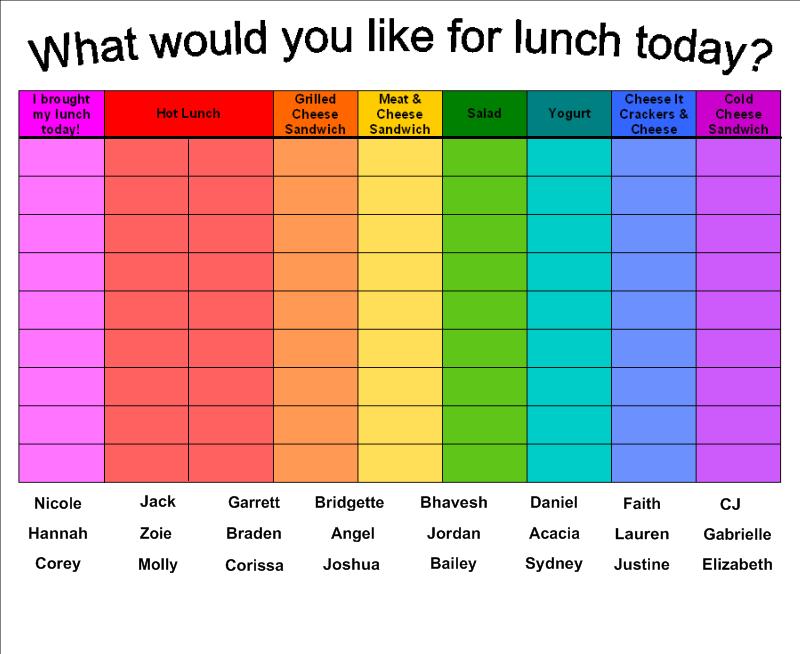
One of the first pages I created to help facilitate classroom management was a lunch count page in SMART Notebook™.  As the students enter the classroom each morning and begin their morning tasks of turning in homework and notes, putting away their bags and coats, sharpening pencils, etc. they take 3 seconds to read the hot lunch option and drag the textbox with their name to the meal they’d like for the day.  When the students have settled into their seats to work on spelling, I can glance at the SMART Board™ and clearly see how many students selected each lunch option and who is absent.

Magic Pen Tool

Magic Pen Tool

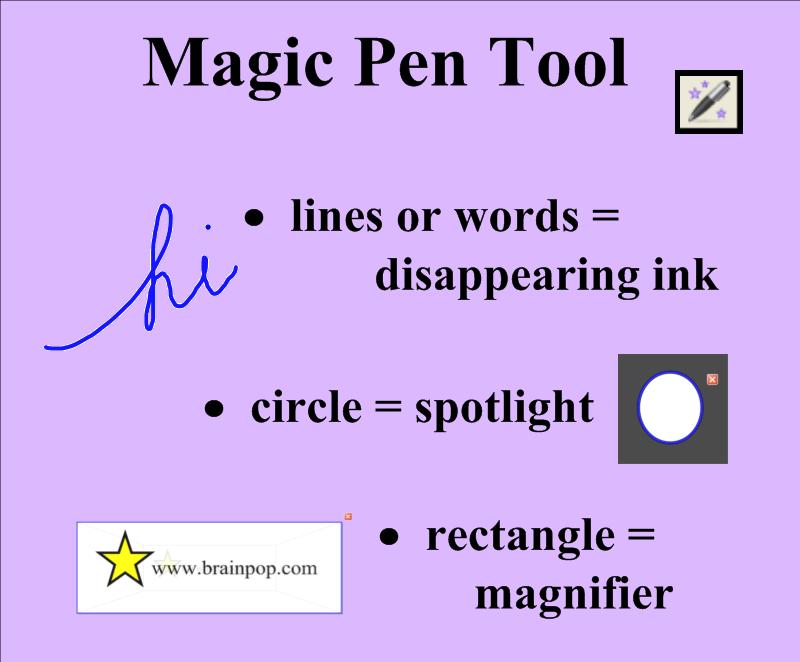
The Magic Pen tool is an additional gadget in the latest version of SMART Notebook™.  It allows users to spotlight, to magnify, and use disappearing ink.  Simply click on the Magic Pen icon on the top toolbar with your finger (or mouse cursor) to select this function.  Then use your finger to write a word or draw a line.  After a few seconds, the magical blue ink vanishes!  Draw a complete circle and a spotlight will appear.  The size and location can be altered by dragging up/down, left/right in the center of the circle.  Draw a complete rectangle, and you’ll get a magnifying tool.  Play around with this amazing feature, and you’ll find many ways to use it in your teaching.