Checklists

LMC Checklist

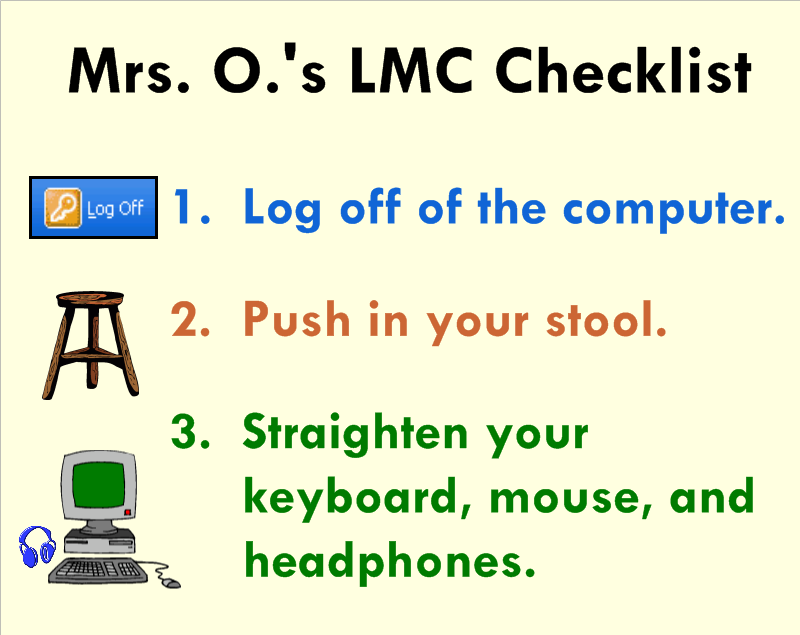
Think about all of the things you repeatedly say throughout the week.  Think about all of the kids who are visual learners.  Now think about how much time and breath you’ll save by making simple to do lists or checklist for your students using SMART Notebook!  I prefer to use 3-5 simple statements coupled with a clipart image for each.  The students will become so use to seeing and following the routine directions that you’ll smile and pat yourself on the back.

Basic Operation and Care

Components

The computer sends an image to the projector through a RGB or VGA cable.  The projector transmits the image onto the interactive whiteboard.  The board relays any input messages (use of pen tools or hand) to the computer through a USB cable.

When you press the board with a pen tool or your finger, the top layer of the screen makes contact with the back layer of the screen.  Press with intent to ensure that your actions are recognized by the back layer.


Safety

  • Never look directly at the projector’s light beam.
  • Never touch the projector. It can become very hot during operation.
  • Never use a chair to increase a student’s reach on the SMARTTM board.
  • Never use other writing utensils (markers, pencils, ink pens, etc.) on the board. Keep these materials and others (scissors, liquids, etc.) away from the area.
  • Be mindful of cords and the legs on portable models.


Cleaning and Orienting

Glass PlusR Multi-Surface Cleaner and a soft paper towel or cloth are recommended for cleaning the board.  This should be done as needed.  Try to make it a habit to clean and orient your board once a week.


Etiquette

Only one user can touch the board at a time.  Since only one point of contact can be recognized by the board, so you may need to adjust how you hold the pen tools when writing.  Do not rest your hand on the board.  If you are right-handed, it is best to stand on the right side of the board.  This way your body will open up to your audience.


The Pen Tray

The four SMARTTM Board pens are simply hollow plastic tubes.  Optical sensors on the pen tray notify the computer when a pen is removed.  If you pick up two or more tools without returning the others, the board will recognize the last tool selected.

One pen try button will launch the keyboard.  The second button allows you to access right-click.  Pressing them both at the same time will open the orientation screen to align the board with the projector.


Indicator Lights

The status light (ready light) is located on the bottom right side of your SMARTTM Board.

Color of Light

       Status

Not Lit
  • The board does not have power.
  • Check the USB connections.
Solid Green
  • The board is communicating with the computer
Flashing Green
  • The SMARTTM  Board driver isn’t installed, or it isn’t running.  Try installing it from www.smarttech.com.
  • If it continues to flash, contact your SMARTTM support representative for assistance.
Solid Red
  • The board has power, but it is not communicating with the computer.
  • The light briefly turns red while powering up.  This is normal.
Flashing Amber
  • This occurs when you are updating firmware.  This is normal.
Solid Amber
  • This signifies a problem state.  Try disconnecting and reconnecting the USB cable at the board.


Seating Chart

Seating Chart

Do you still make paper and pencil seating charts?  Now with SMART™ Notebook, you can create a template of your classroom floor plan and manipulate the students’ names whenever you feel it’s necessary to switch things up.  It also eliminates the need for the teacher to move the desks after school.  Let the students view the setup and work with a partner to move desks to the new arrangement.
 

The First Way to Bulid Your Seating Chart

  1. Use the square drawing tool to make a desk.  Add a fill color (tan) to the square, if you’d like.  Use the infinite cloner option by clicking on the drop-down arrow of the first desk.  Drag 24 (or the maximum number of students in your room) squares from the original.  Remove infinite cloner from the first square.  Position the desks in the arrangement you would prefer.  Lock them in place so that they don’t move accidently when you attempt to adjust the name textboxes later on.
  2. Add shapes for necessary furniture, the SMART™ Board, or the classroom door if you’d like.
  3. Make one textbox with your longest students’ name.  Use the “Infinite Cloner” option by clicking on the drop-down arrow of the textbox.  Drag 24 (or the maximum number of students in your room) textboxes from the original.  Remove infinite cloner from the first name.  Position the names on each desk.  Double-click on each textbox to change the name.
     

The Second Way to Build Your Seating Chart

  1. Use the square drawing tool to make one desk.  Add a fill color (tan) to the square, if you’d like.  Use the infinite cloner option by clicking on the drop-down arrow of the first desk.  Drag 4 (or the maximum number of students in a table group or row) squares from the original.  Remove infinite cloner from the first square.  Position the 4 desks in the table or row arrangement you would prefer.  Group the table or row of desk by marquee selecting them all, choosing one of the drop-down arrows, and selecting “Grouping” and the sub category of “Group.”  Infinitely clone this group of desks until you’ve filled the page with the maximum number of tables or rows you need. Position them before marquee selecting all of the tables or rows and “Locking” them in place so that they don’t move accidently when you attempt to adjust the name textboxes later on.
  2. Add shapes for necessary furniture, the SMART™ Board, or the classroom door if you’d like.
  3. Make one textbox with your longest students’ name.  Make 4 textboxes by using the “Infinite Cloner” option.  Position the 4 textboxes in one of the table or row arrangements.  Group these four textboxes (not the desks) marquee selecting them all, choosing one of the drop-down arrows, and selecting “Grouping” and the sub category of “Group.”  Infinitely clone this group of 4 textboxes until you’ve filled the page with the maximum number of names you need. Remove infinite cloner from the first group of textboxes.  Position the textboxes (grouped) on each table or row before selecting “Grouping” and “Ungroup.” Double-click on each textbox to change the names.

SMARTtech™.com

Searching through various websites with SMART Board™ lessons can be overwhelming.  Allow me to showcase one site at a time to help you navigate these collections.

www.SMARTtech.com

My favorite resource for pre-made SMART Board™ lessons is www.smarttech.com.  It allows you to filter your search by grade and subject.  You can also view Two-Minute Tutorial videos or read Quick Reference Guides on the basic features of SMART Notebook™ and other SMART™ products/software.  Here are the direct links to the ones I’d recommend for new users.

SMART™ Lesson Activities (U.S.)

SMART Notebook™ 10 Toolbars Quick Reference Guide

SMART Notebook™ 10 Gallery Quick Reference Guide

SMART Notebook™ Software Learner Resource
This is a 38-page booklet with everything a new user needs to know to get started.