Got Wordle?

Wordle

Wordle, www.wordle.net, is a website for creating word clouds.  Simply type in a series of words using commas.  The more often the word is included, the larger it will appear in the final word cloud.  Then customize the themes, fonts, and colors.  Use the SMART camera tool to take a picture and add it to your SMART file.  There are a variety of classroom applications.  Ask your students to write down five words to describe a character from a story, a scientific concept following the unit of story, or an upcoming holiday.  This can be an individual or small group task.  Or create a Wordle on a topic of study and use it to preview the chapter.  Students can view it and make connections to prior knowledge.  Or type each of your student’s names to create a class word cloud that can be an image on your classroom website or your classroom computer’s desktop background.  TIP:  Type your words in a Word document and paste them into the field on the site.  Because if you decide to “go back” and add, delete, or change words, you will be sent back to the home page.  Your work is not saved on the site.  Also, for two words that you’d like to stay together such as United States, put a ~ between the words (United~States).

Pete’s Presentations

Phillip Martin has outdone himself with his collection of sites offering educators FREE PowerPoint presentations, education websites, and clipart.  The main site, Pete’s PowerPoint Station, has links to numerous resources.  I’d recommend viewing all of the themes and topics at Pete’s Presentations because you can look at all of the possibilities.  Sub-sites include Gretta’s Game Station and Hannah’s Homework Help Station.  Don’t miss the clipart link.  Mr. Martin’s unique, colorful cartoon style appeals to all children.

As long as you use it for your classroom (newsletters, website, interactive whiteboard lessons, self-made worksheets, etc.), these amazing resources are yours at no cost.  He does ask that you tell someone else about the site.  I’d say that is the least we can do to thank Mr. Martin for his outstanding artistry and organization.  This is a teacher’s jackpot!

Pete’s Presentations
http://www.pppst.com/themes.html

Gretta’s Games
http://games.pppst.com/index.html

Hannah’s Help
http://resources.pppst.com/index.html

www.multiplication.com

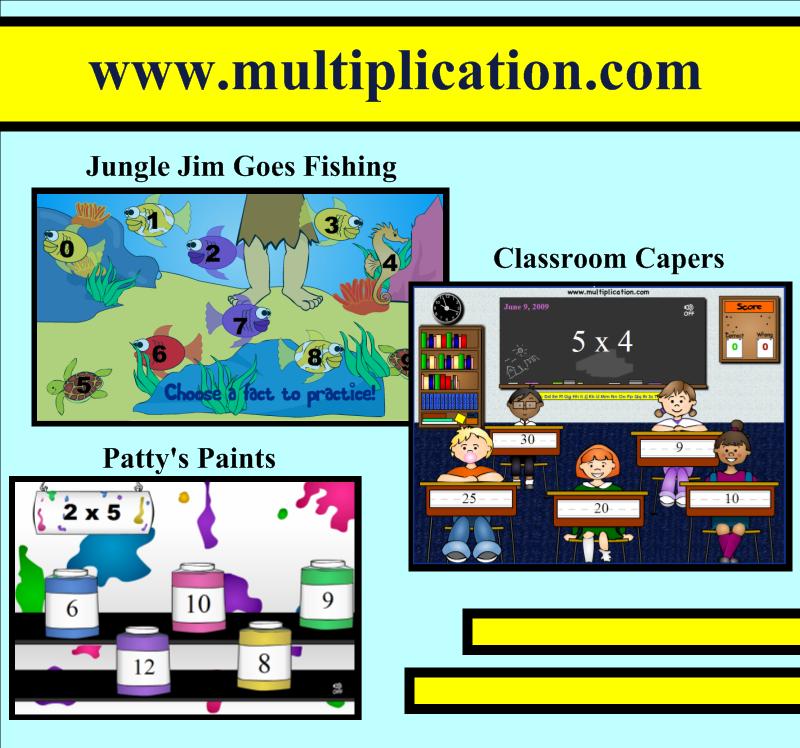
If you are a teacher or parent of a school-age child, www.multiplication.com is the best site I’ve found for practicing the basic X facts.  This site includes worksheets, timed tests, hands-on classroom games, and flash cards, but the real treasure is the assortment of interactive computer games for learning individual fact families.  While mixed practice is also available, it’s wonderful to focus on just the recently introduced fact family.  The plethora of games includes “Classroom Capers,” “Jungle Jim Goes Fishing,” and “Patty’s Paints.”

I like to model a new game for the entire class each week.  Then, while the students complete a practice worksheet on the fact family we are currently learning, one student goes to the SMART™ Board to play the game and another watches and waits in the batter’s box.  For some games, the student can take the full timed minute to try to answer as many questions correctly and attempt to earn a high score.  In these cases, the game becomes a competition amongst the students.  Other games may require a limit of 5 problems per student, because the rounds take several minutes to complete.  It may also depend on the amount of time you can set aside and the number of students in your classroom.  I find that as students finish the independent worksheet, they watch their classmates at the SMART™ Board.  This allows the other students to finish their paper assignment at their own pace, and keeps early finishers engaged.

BrainPOP

BrainPOP

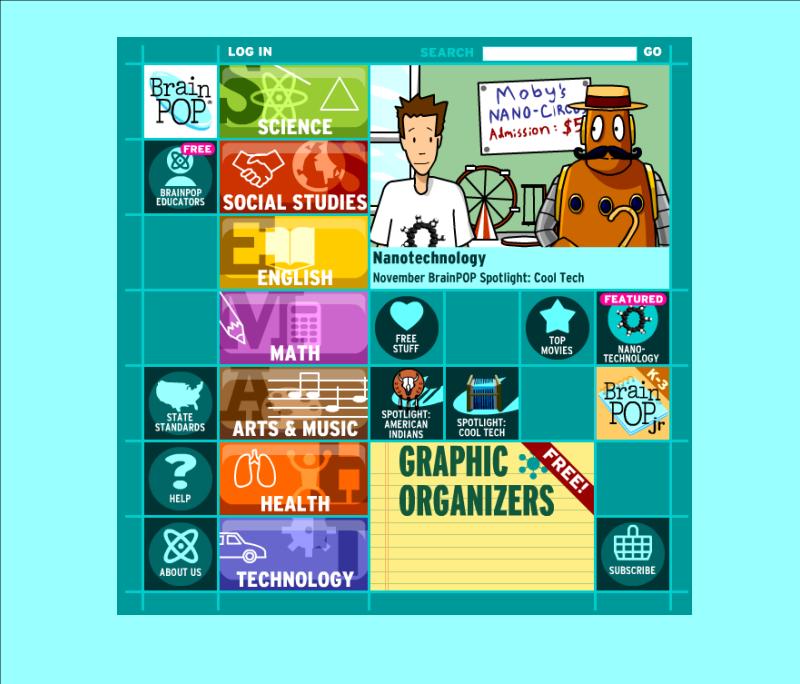
Let Tim and Moby escort you and your students on a topical adventure! Use these approximately two- to five-minute animated videos at BrainPOP to enhance your reading, writing, English, math, science, social studies, art, music, technology, etc. lessons. The best feature is the ten-question multiple-choice quiz that follows each video. Get all of your students involved in responding to these comprehension checks! Activity ideas and worksheets accompany each topic as well. This is one of my favorite sites to support the skills and topics of study I teach. While you’ll need to purchase a subscriptions to fully take advantage of this site (and its partner sites BrainPOP, Jr. and BrainPOP, Espanol), there are several free videos. Click on “Free Stuff” to see it all. BrainPOP, Jr. is intended for K-3 grades and BP is geared toward 3-12 grades. Preview the video you think you’d like to show before airing it. Sometimes the vocabulary and content is too challenging for my third graders, so not all videos are appropriate to show.  You’ll also want to register for the free “BrainPOP Educators.”  Gain access to all of the activity pages, various graphic organizers, ideas for using BrainPOP in your classroom, and a lot more!

Online Stopwatch

Online Stopwatch

Do you give your students timed tasks?  Do you use a kitchen timer, sand hourglass, stopwatch, or the classroom clock to mark the time?  Last year a colleague of mine turned me on to www.online-stopwatch.com.  The students are actually able to watch the countdown as it happens on the SMART Board™ and better pace themselves.  Teachers can choose from several versions including a digital clock, analog clock, egg timer, bomb, or split lap timer.  I use this site for giving math fact timed tests or oral reading fluency timed assessments.  It is also useful for counting down to the end of group work or setting time limits for transitions between tasks.

SMARTtech™.com

Searching through various websites with SMART Board™ lessons can be overwhelming.  Allow me to showcase one site at a time to help you navigate these collections.

www.SMARTtech.com

My favorite resource for pre-made SMART Board™ lessons is www.smarttech.com.  It allows you to filter your search by grade and subject.  You can also view Two-Minute Tutorial videos or read Quick Reference Guides on the basic features of SMART Notebook™ and other SMART™ products/software.  Here are the direct links to the ones I’d recommend for new users.

SMART™ Lesson Activities (U.S.)

SMART Notebook™ 10 Toolbars Quick Reference Guide

SMART Notebook™ 10 Gallery Quick Reference Guide

SMART Notebook™ Software Learner Resource
This is a 38-page booklet with everything a new user needs to know to get started.