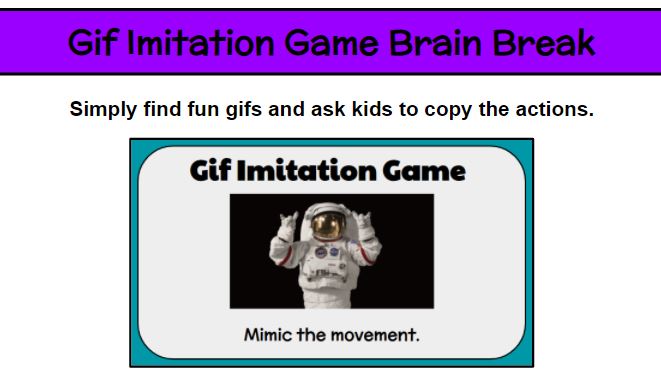
Kids love gifs. (Not gifts . . . this time. GIFS.) Who doesn’t love gifs? So, let’s give everyone what they want. During a brain break, kids are looking to have a good time, be silly, move around. Find some inspiration at www.giphy.com and create your own mime game. Some of my themes included cats, dogs, penguins, Super Mario, Toy Story movies, Disney movies, Lego movies, and this stellar astronaut doing various far out moves.
Link the site http://online-stopwatch.com to your presentation pages (or bookmark) for quick access to timers. If you want students to focus on work or step away from the screen to take a break, use the less exciting ones. I have used this resources for many, many years. What a great visual for students to manage their work time. Be sure to check your volume level in advance so you don’t scare the pants off of the kids!
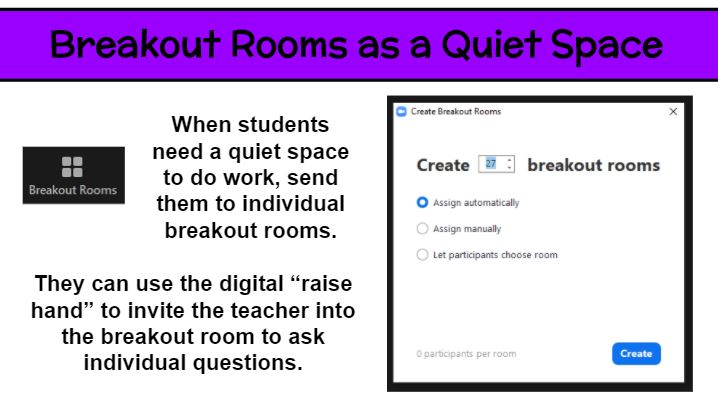
Breakout rooms are great for small group discussions. But what about using them for individual students. A large whole-class virutal meeting is never truly silent and free from distraction. So how can students spend time reading or thinking in that setting? Why not put each student in an individual breakout room for that 5-20 minutes of time? Then everyone can read to self, practice fact fluency, watch a video (hopefully without streaming issues), and the like. Of course, it is important for for students to be supervised at home or generally responsible. As the teacher, you can pop into each breakout room to check in on kids and have individual conferences. Keep them on their toes by not saying ahead of time which kids you will meet with. If a student needs help or has a question while in the solo setting, he/she can use the digital “raise hand” feature to summon the teacher.
Organization 101. Is there a college course for teachers on this? Well, there certainly should be. Being organized is the first step to establishing a well-functioning classroom environment. When I learned that we would start the school year with 100% remote learning, I put all of my initial focus on organization.
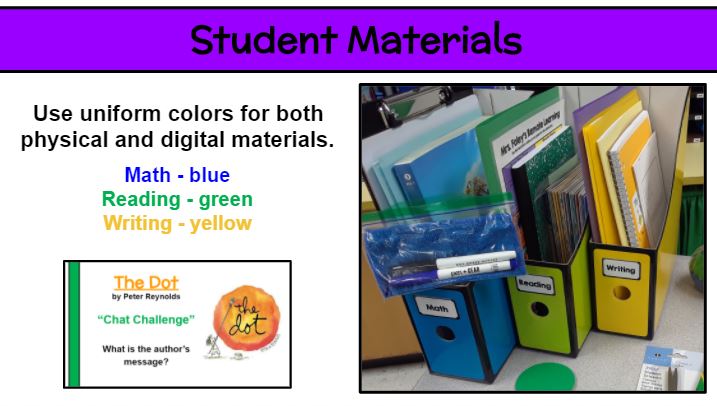
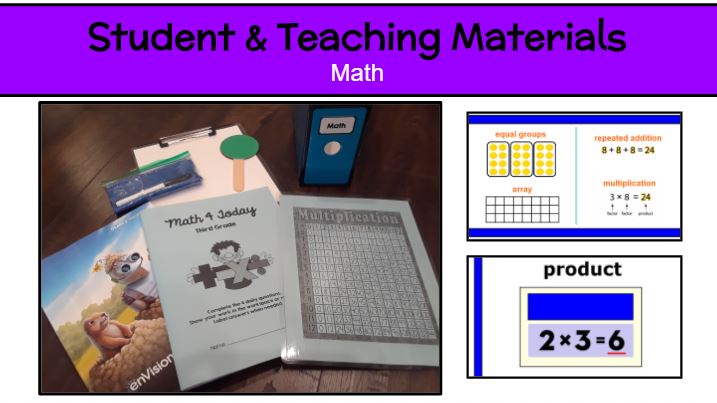
I love to color-code everything! I highly suggest selecting a color for each subject and using it for both physical and digital materials. Choosing uniform colors starts with the supplies you are provided, such as workbooks. Since our math workbook is blue, I made the other math materials that color. Since yellow spiral notebooks were provided as a student supply this year, I made all writing materials yellow. The uniform colors will help kids and families categorize content. Magazine files make great subject totes. Remember to use a splash of these colors on your presentation pages to tie it all together. Check out the at-home classroom I provided each of my students for remote learning (3 subject totes, clipboard, dry-erase board with markers and eraser cloth, workbooks, journals, folders with resources, Scholastic News magazines, books, red/green communication paddle, etc.).
Since every students has identical materials, it makes transitions during lessons smoother. No one has a good excuse for not having the item or knowing what/where it is! “In your green reading tote, find your green reader response journal.” Color-coding has maximized my time-on-task with students.
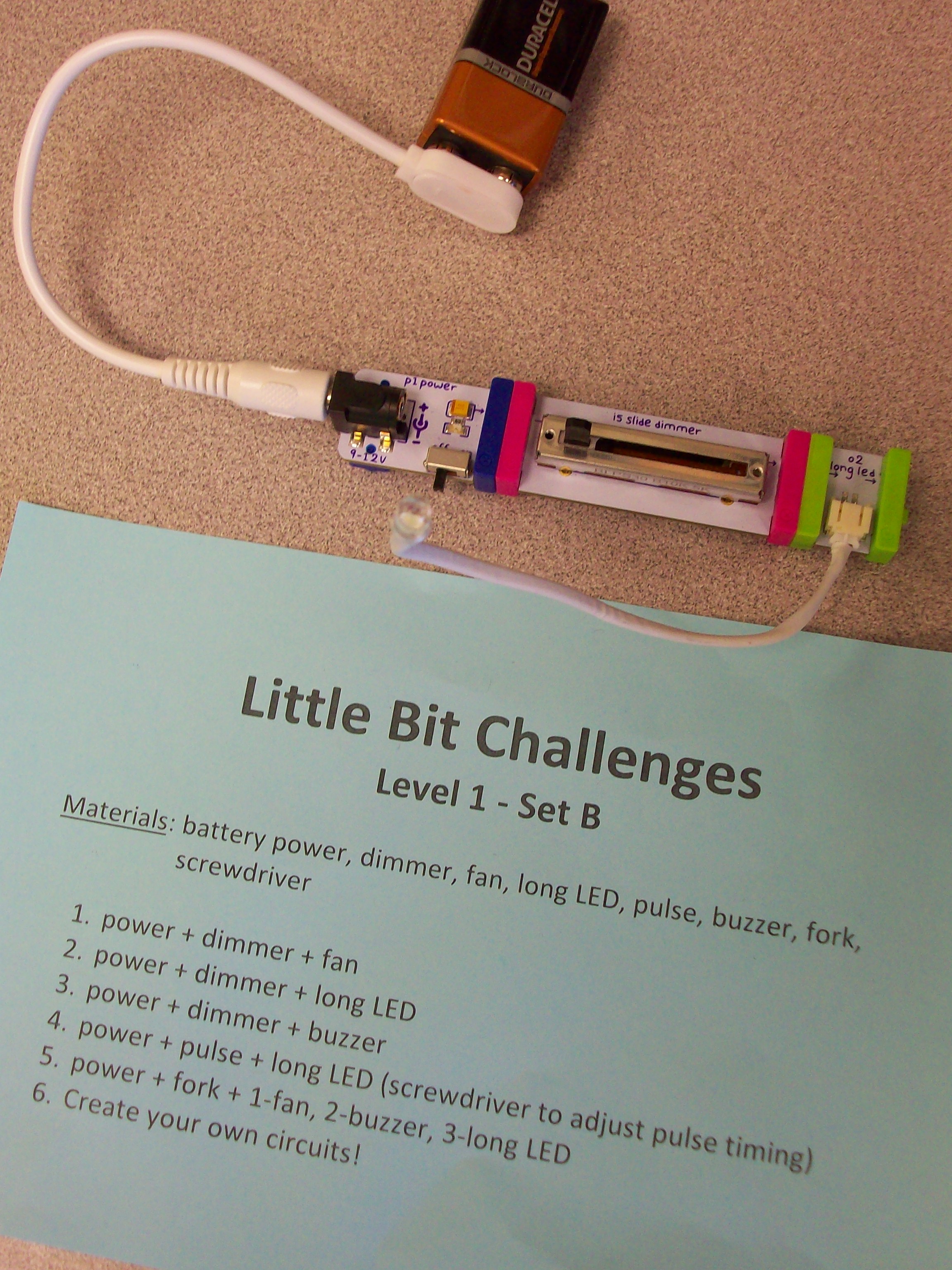
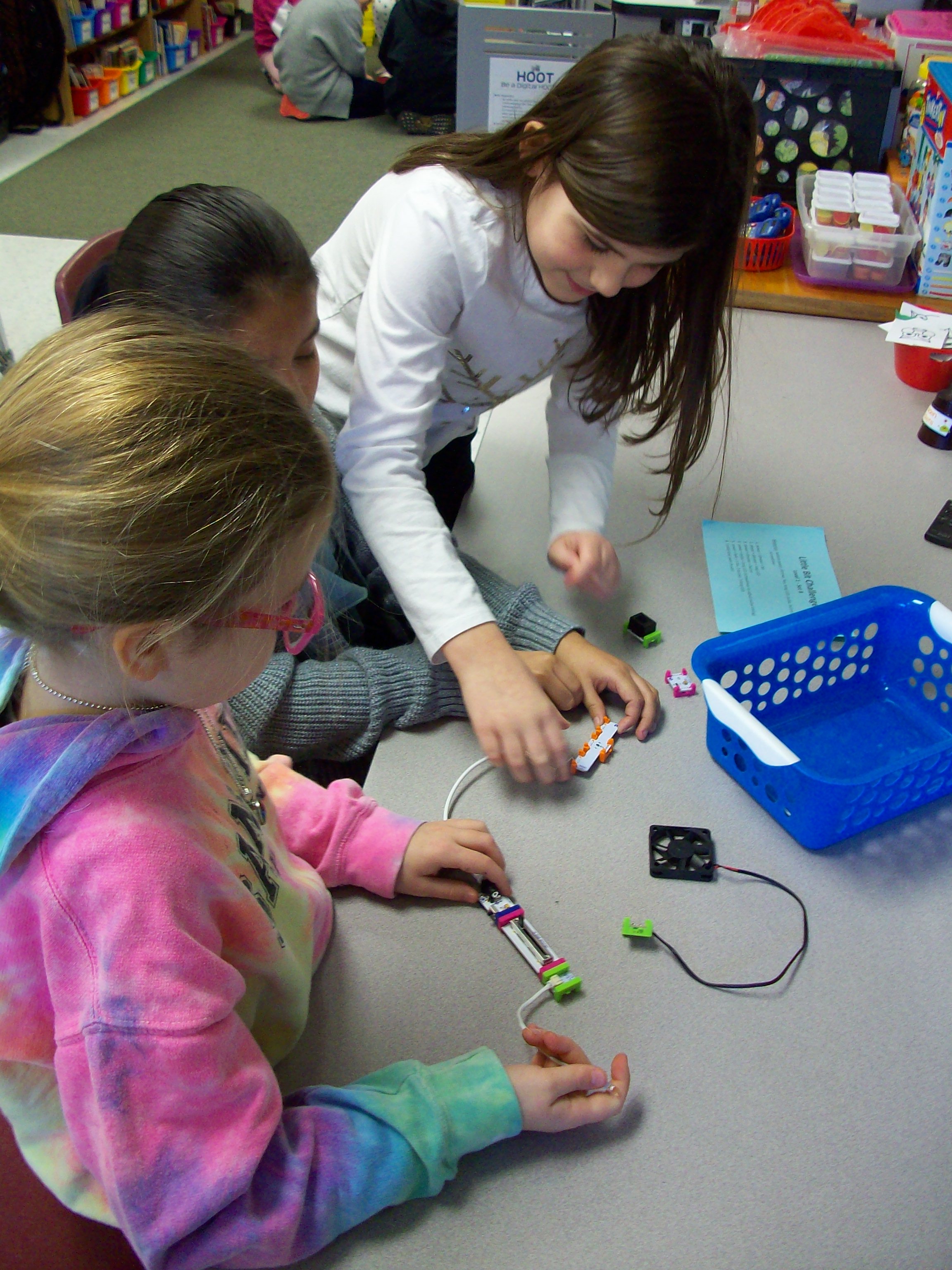
Little Bit kits are amazing for teaching electrical circuits and engineering, but also provide students with opportunities to wonder and explore. The miniature pieces snap together with a magnetic system. Students start with a power source (electrical cord in an outlet or 9-volt battery) and add on switch (dimmer, pulse, etc.) and mechanical device (fan, buzzer, light, etc.) Once they learn the basics of how the circuit works, kids can take on Little Bit challenges to build all kinds of inventions! I had 4 Little Bits kits to work with 26 students, so I prepped baskets with the materials my groups of 3-4 kids would need along with a direction card I created. Every group needed a power source, and since I had 4 kits that each have a wall outlet or battery, I was able to make 8 baskets. Half of them were Level 1 – Set A challenges with the wall outlet and half of them were Level 1 – Set B challenges with the 9-volt battery. Since it was their first time using these materials, the tasks where outlined for them with simple circuits building up to more intricate ones. When done with the 5 challenges I had set, groups were given time to explore with their pieces. The next time we swapped A and B baskets and investigated more with the new blocks. And for our third experience with Little Bits, teams were given invention challenges. We used the instruction booklets that came with the kits, but the Little Bits website has many resources and project ideas. Get ready for fun!
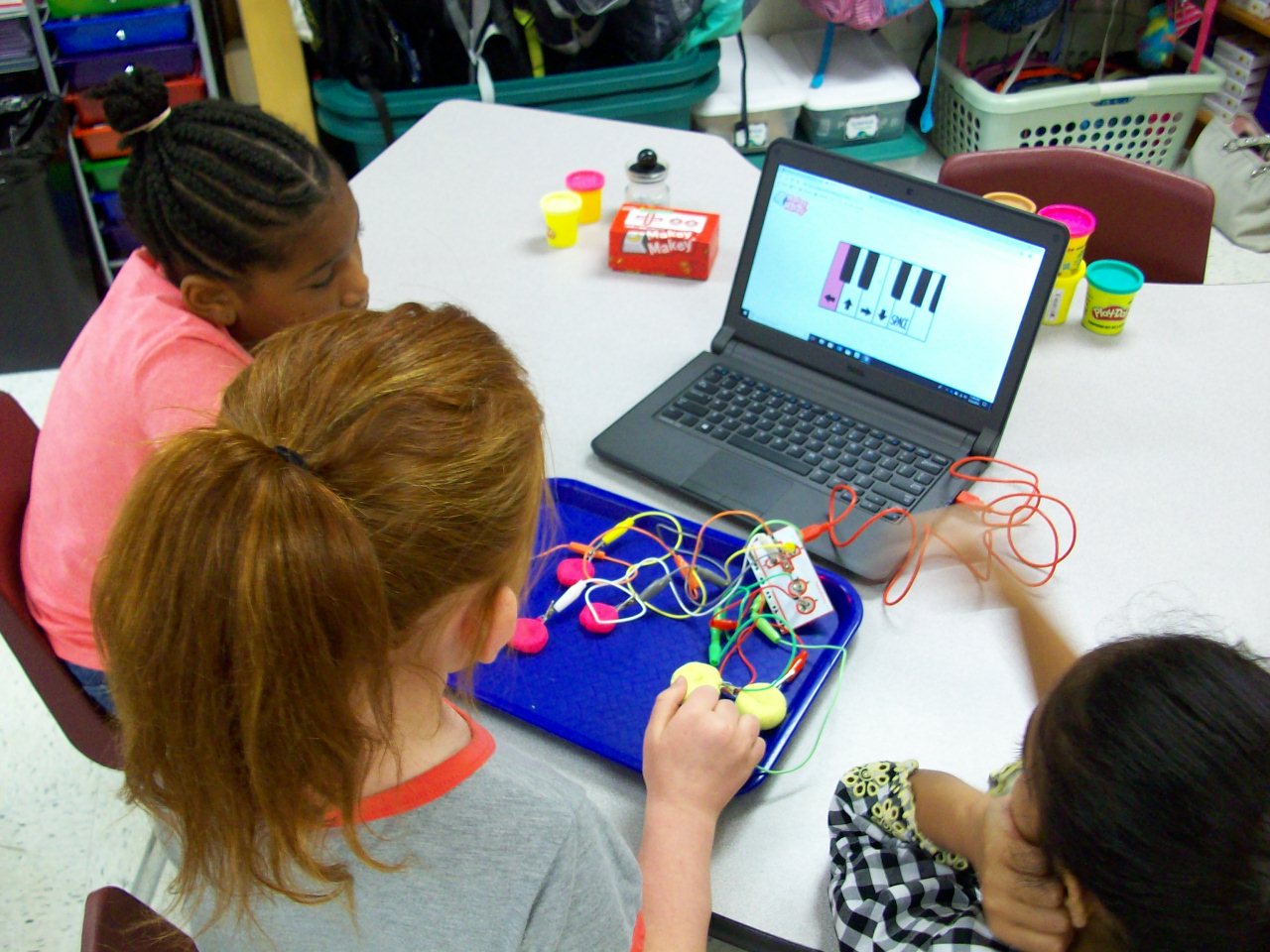
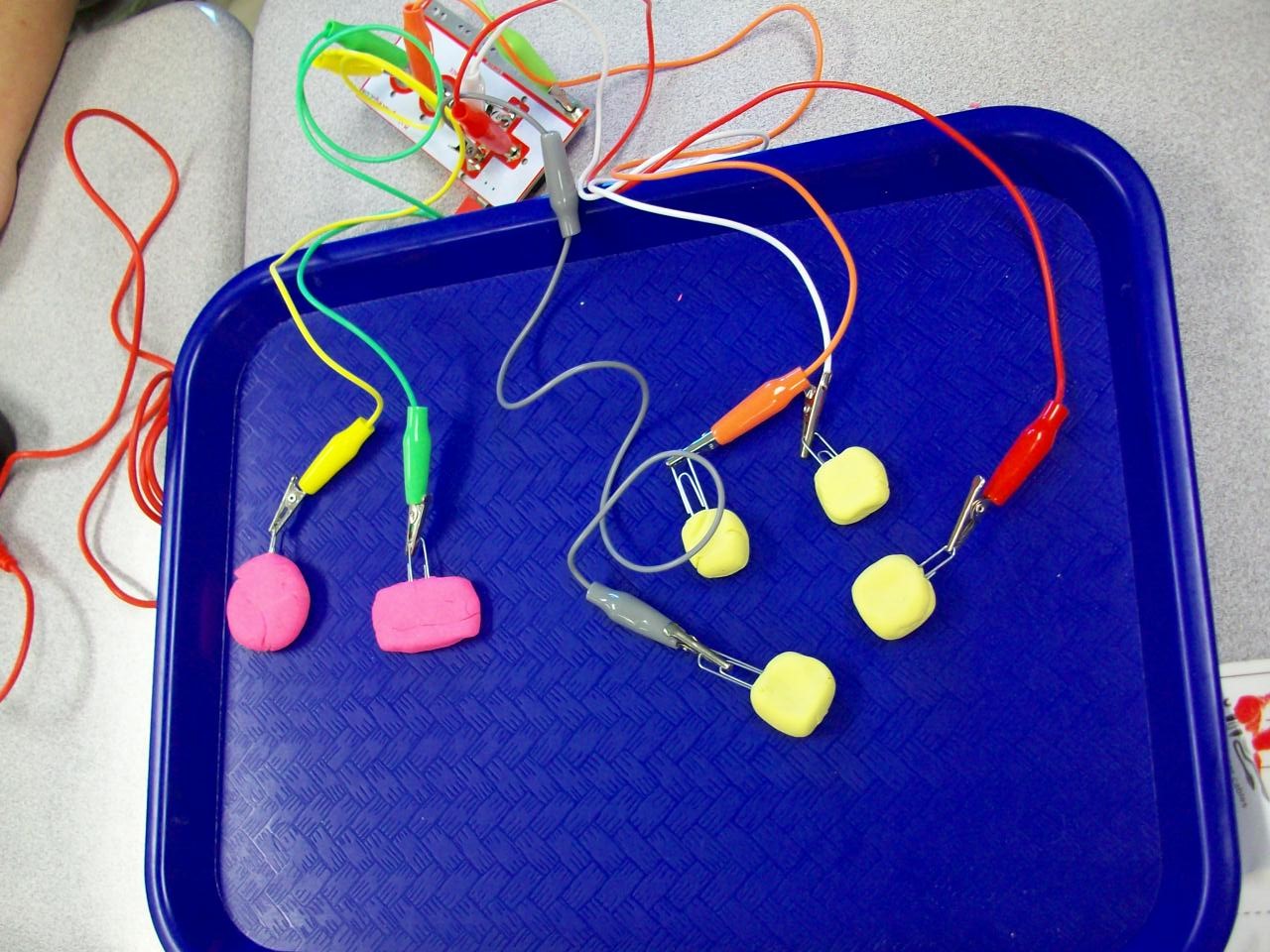
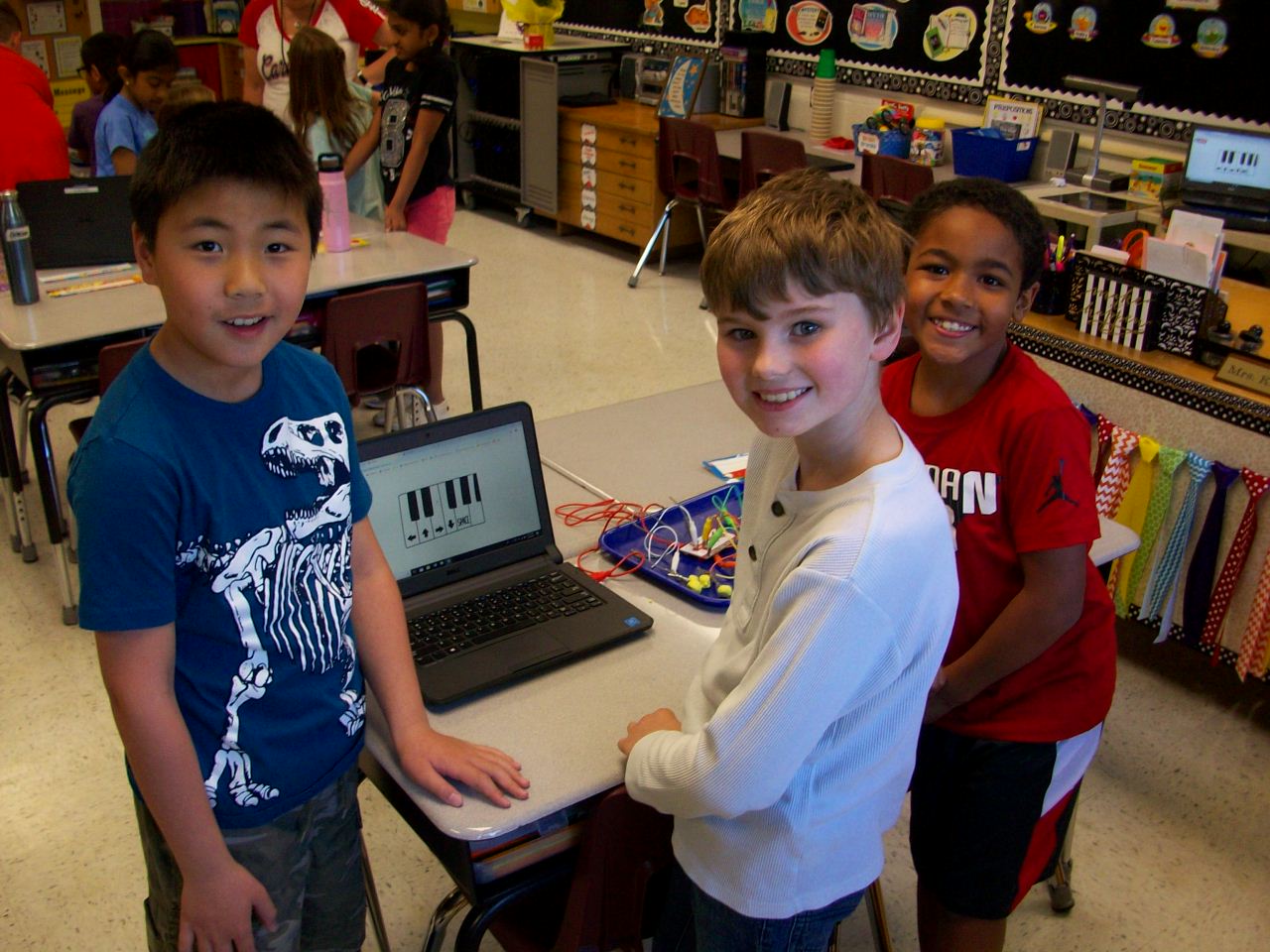
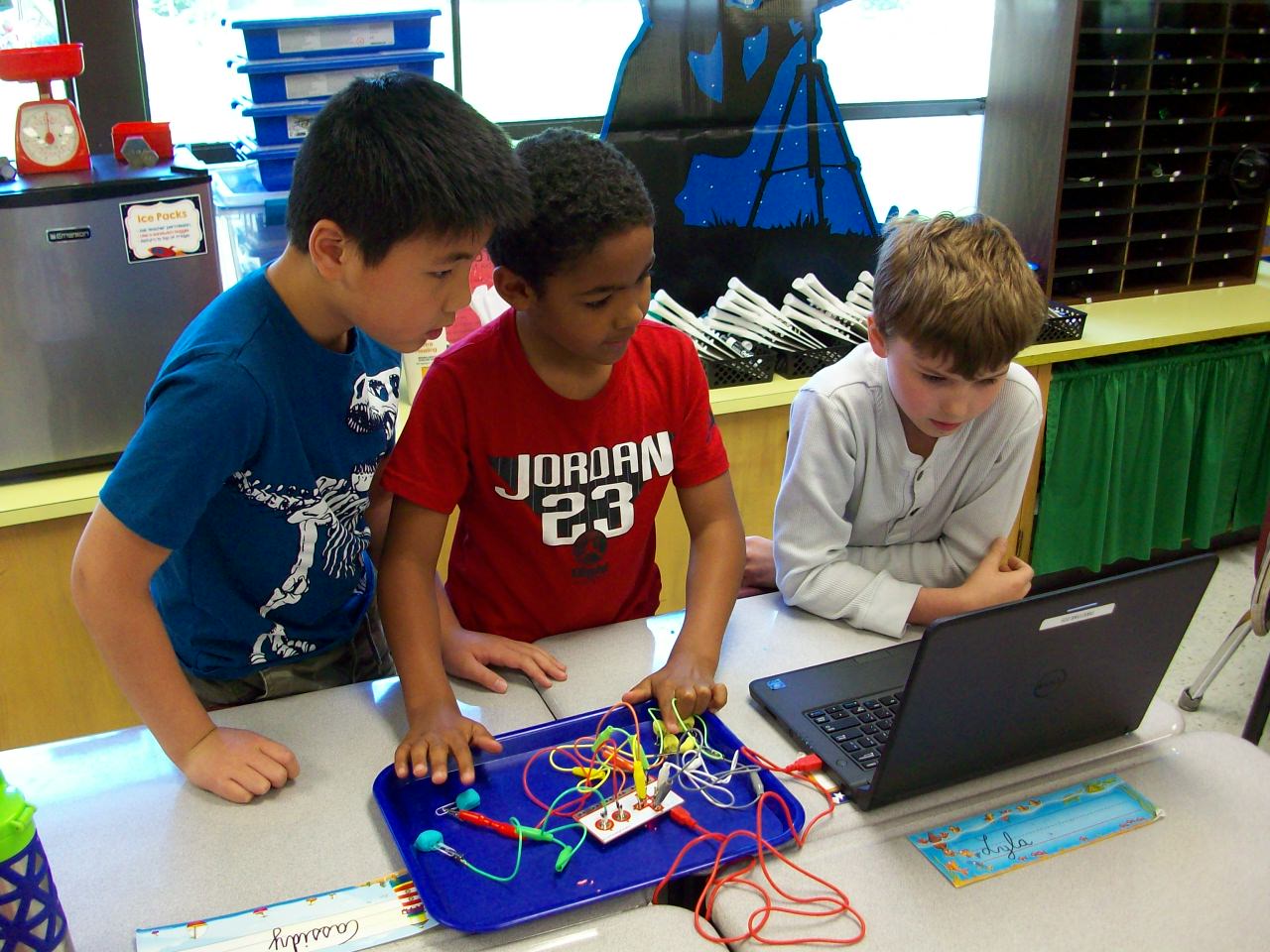
Makey Makey is the coolest! The small box contains a motherboard, wires with alligator clips on either end, and a USB cord to connect a laptop. What’s so special about these materials? In the right configuration with conductive materials (Playdoh, bananas, etc.), you can take over control of the keyboard and mouse. I introduced the Makey Makey kits with a Mrs. Foley talent show performance. Act 1: Comedy. I made a SMART Notebook file with several banana jokes. Each time I delivered the punchline, I tapped the bananas I had attached to the hidden motherboard and the bongo app I had opened played my “bu-dum-dum” rhythm. The kids saw me tap the bananas, but heard a bongo. They were confused. Seeing as how my jokes were sub par, I decided to up my game and impress the class with my classical music talents. Act 2: Piano. So I switched over to the piano app and played “Ode to Joy” on the bananas. Beautiful. Still, the kids were perplexed and I thought my performance needed to be more in line with their interests. Act 3: Video Game Master. So I pulled up the original Super Mario Bros. video game and attached a different motherboard with Playdoh chunks. Start game. Tap the Playdoh. Avoid the goombas, turtles, and ledges. Pass level 1. And soak up the cheers and laughter. This is when the class was fully on board. Because I had the motherboard and wires covered with a cloth, the kids didn’t understand what was happening. So when I revealed the devices, they were soooo curious and wanted to check it out themselves. Each team of 3 was given a box with the Makey materials, 2 containers of Playdoh, and paperclips (to keep the alligator clips from getting covered in the clay. (I opted not to give every group 5 bananas, but let them try out my set up.) They began with the bongo app and moved on to the piano app and eventually the Mario Bros. game. After the exploratory part, I asked the students to help explain how it all worked. It led into a fun discussion on electrical circuits and conductors. NOTE: The circuit only works if the “player” holds onto the “earth” alligator clip so the loop is complete. We had the best time and an hour passed in what seemed like seconds. The students were completely engaged and loved the fact that they played Super Mario Bros. at school! (I hope they explained the purpose to their parents when they boasted about their video game experience that night.)
So, I’ve wanted to do green screen projects with my students for awhile now. But managing it seemed impossible. Until I came up with what I thought was a smaller-scale activity. As it turns out, this adventure took just as much time and effort as a full-scale human actor green screen video. But we still had a blast! Let me share what I learned along the way.
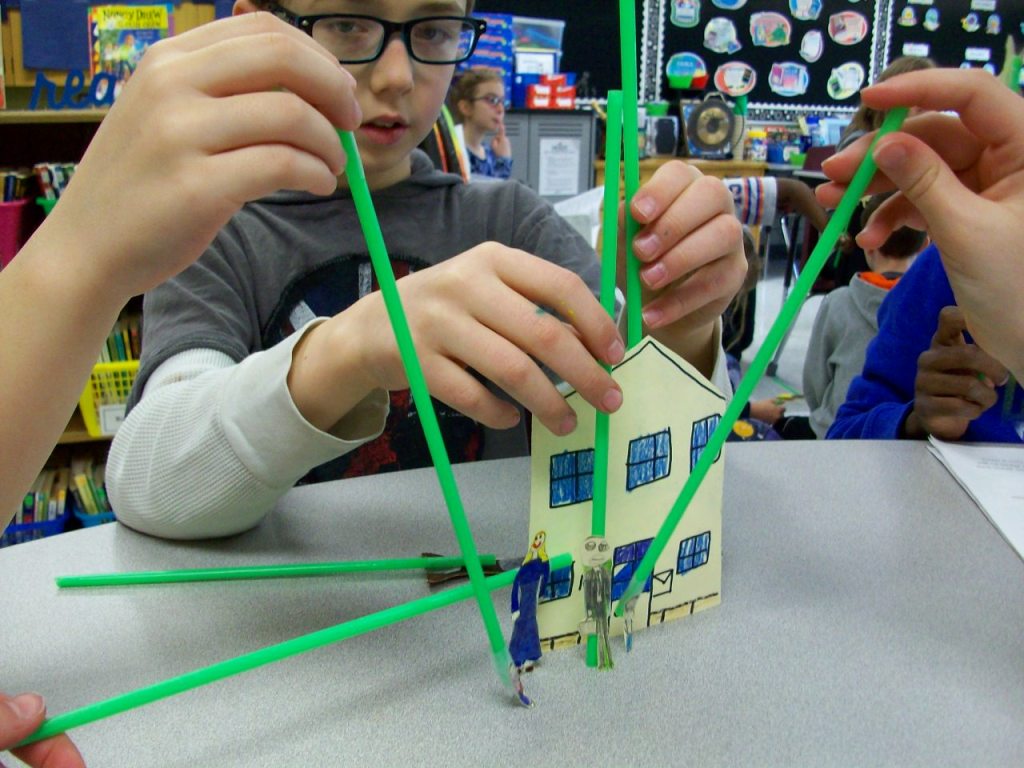
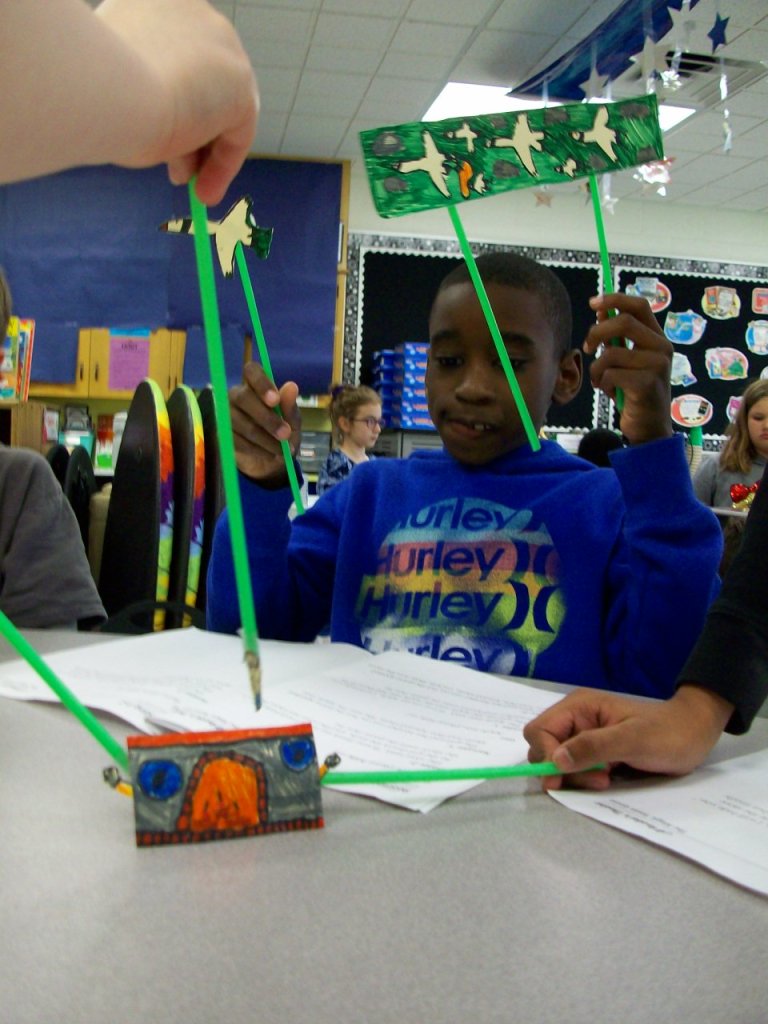
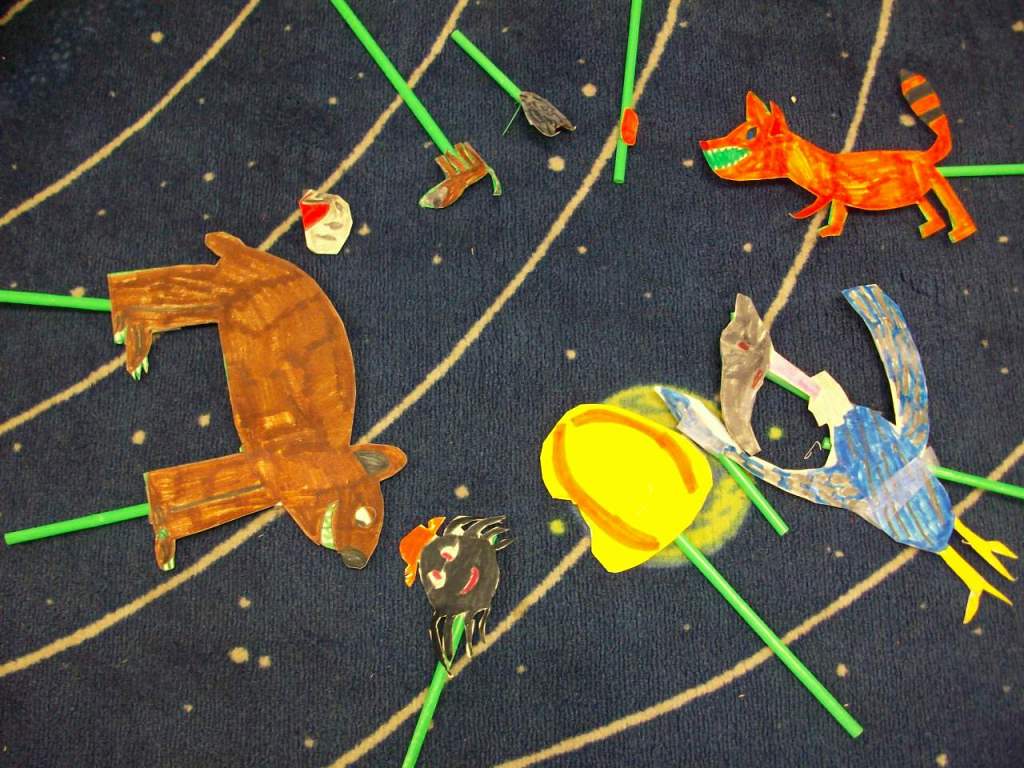
First, I do think stick puppets is the way to go over kids acting. It reduces pressure and self-consciousness. I found five folktale plays and began with groups reading independently for comprehension and then choosing parts and practicing fluency. Next, they created the puppet characters and props on a thick cardstock. TIP: Avoid green when coloring your puppets, because that part will take on the background image. If you really need green, use a different shade from your fabric. However, if you had small areas around an puppet that would be difficult to cut around, just use green and the background images should appear in that space. One of my groups were pure geniuses with this. They needed a flock of birds, but instead of making 6 individual birds, they colored green marker around the birds and cut them out as a big set. So clever! We attached green straws that matched the green background color. TIP: It’s easier to find different shades of green in fabric, so purchase your straws first, then bring one to the store and hold it up to each bolt of cloth. You’ll want them to be a very close match in order for the straws to disappear on screen.
Then the groups practiced fluency in conjunction with maneuvering the stick puppets. Since it was a small space, they had to work in close quarters. TIP: I stretched the fabric across a rolling clothes rack I typically use to hold pocket charts. Some students held puppets from either side and others reached over the top or came up from the bottom. I also let the teams pick their virtual backgrounds. We used free images from www.pixabay.com. A few groups only needed a single image for the story, but others required 2 or 3. Our district has Zoom video conferencing which has a recording option. That worked perfectly for inserting the virtual background and filming. TIP: A smooth fabric screen and good lighting is key to the virtual image looking crisp and the straws disappearing into the background. Any wrinkles in the greenscreen or an overcast day can negatively impact the quality. We often tightened the fabric and did all of our recording near our wall of classroom windows.
While one group was filming, the others had independent reading time. We had to have absolutely silence since the Zoom recording was able to pick up a lot of background sound. Some students enjoyed watching the other groups rather than reading, and I was fine with that. When all teams finished, we had a whole-class screening and shared compliments with each group. It was certainly a learning process for me, but I feel the students learned a lot about what goes into a production. For some of them, this might have been their first experience with performing arts or this kind of technology. And perhaps it opened a new door for those who most enjoyed it.
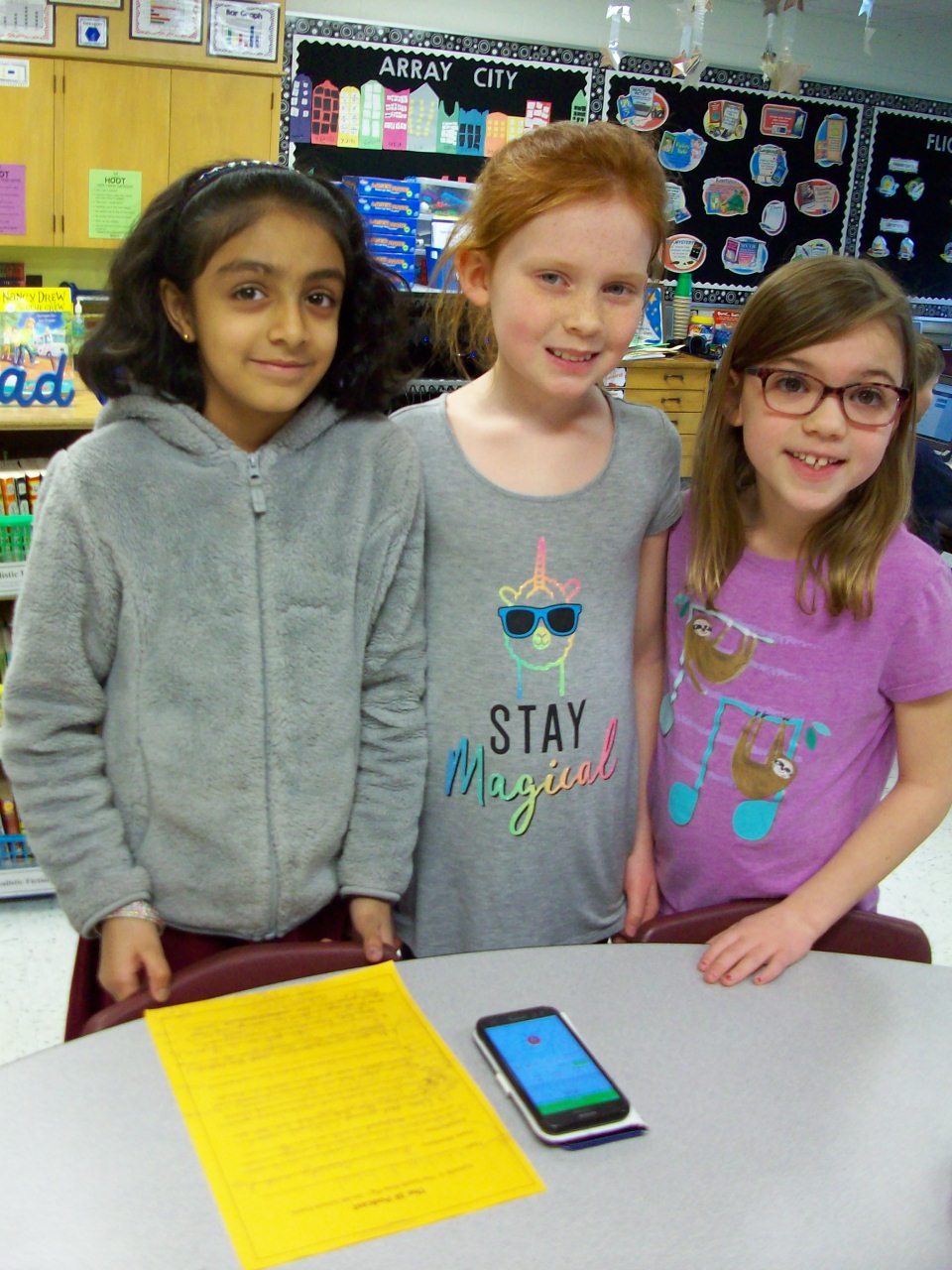
I don’t think I’ve challenged myself enough this school year. Why not try a podcast? Ok! It sounded very involved, but once I decided on using www.podbean.com (free), the rest was business as usual. As a class we brainstormed topics to highlight our all-school novel study of The Adventures of a South Pole Pig (fun characters, closing assembly play, trivia, family events, etc.) The kids chose their groups and chatted about what to include. I provided each team with a template. The worksheet had them think of a unique opening for their segment (onomatopoeia, single word, song, etc.), share 5-8 details, and wrap up with a creative closing. We used my cell phone as our recording device, and I saved each section as separate files that I later merged into one podcast on the app. I was excited to have a real audience for this project (mostly parents) and incorporate writing and speaking goals. Kids can do such grown-up things!
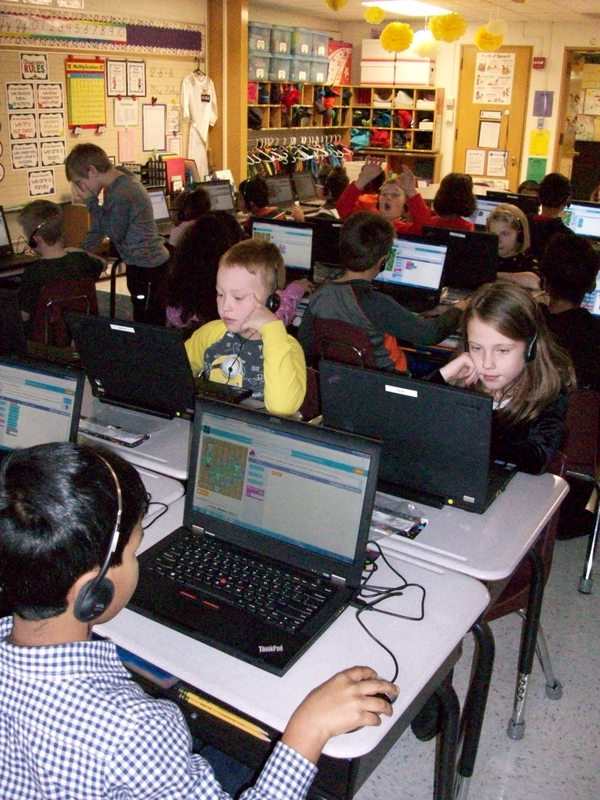
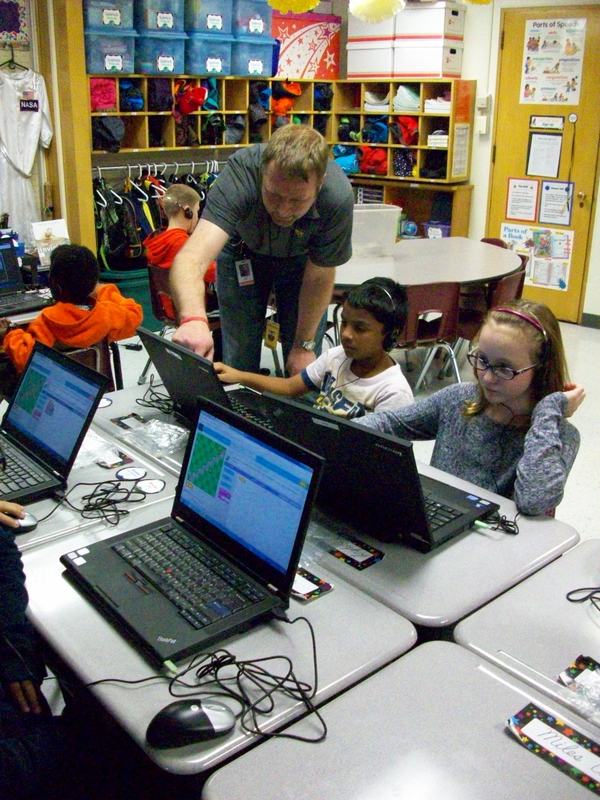
Don’t be afraid of coding! I was. So I enlisted the help of a co-worker’s husband who does it for a living. He was great at helping us ALL get our feet wet! During “Hour of Code” week, Mr. H came to our classroom and explained what coding is and how we use it every day. The www.hourofcode.com website was perfect for the kids to explore coding in a video-game style format. The coding blocks and trials allowed the kids to take chances and learn from any mistakes. They took on each leveled challenge and persevered through any obstacles by trying again or asking for help. No one gave up, pouted, or cried . . . not even me! It was a great experience for everyone. And we don’t need to wait until next December’s “Hour of Code” week to do it again. We can explore coding anytime, because we know it’s nothing to be afraid about!
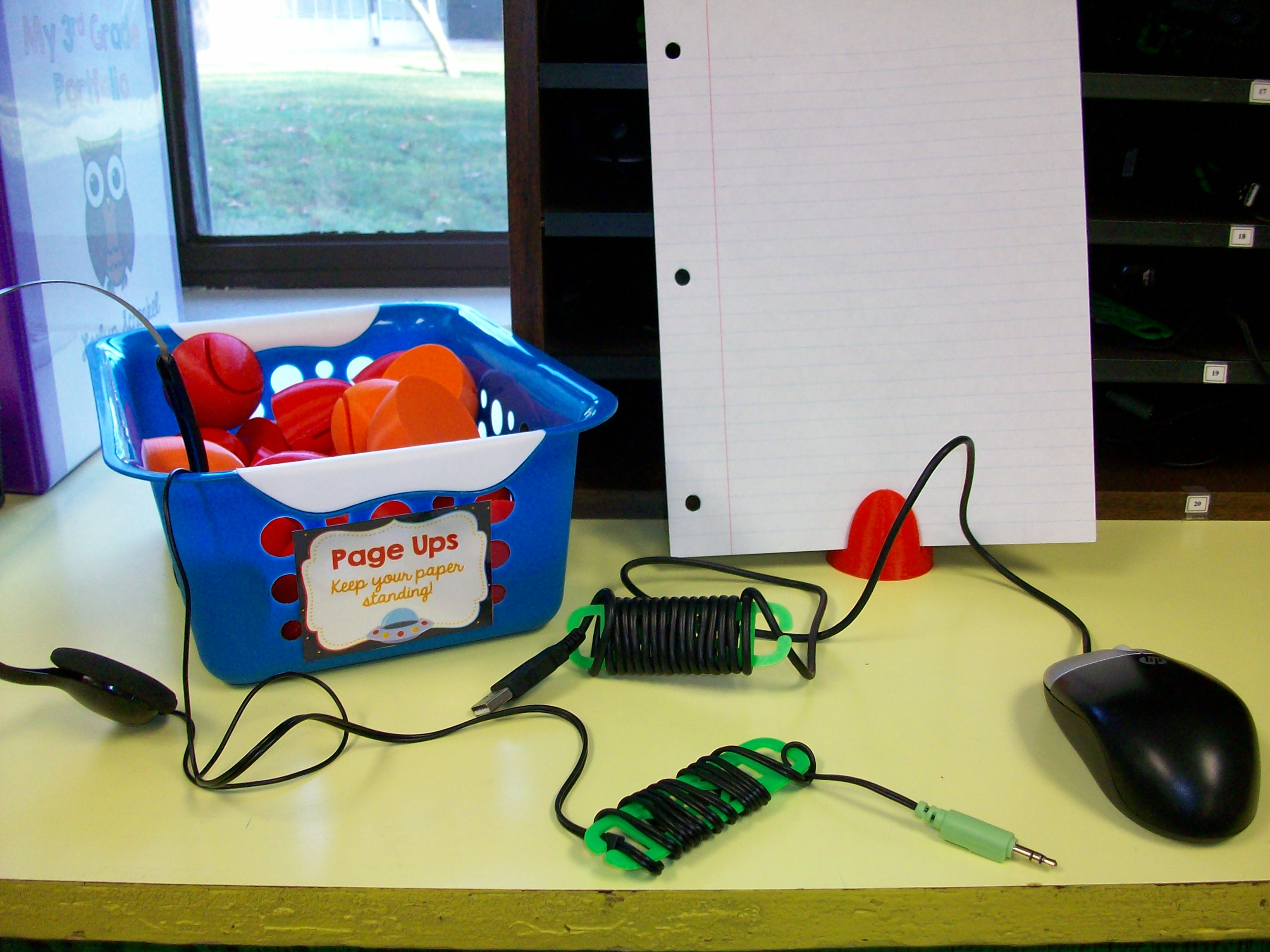
We LOVE a school-based 3D printer, especially when a great friend pops into the library throughout the day and cranks out 30 page ups and 60 cord wraps. Well, it took him a few days overall, but these items were worth the wait. I found templates on Thingiverse.com for a paper holder called a page up and skinny cord organizers called cord wraps. The plastic used for these items cost less than $0.50 a student. (A store-bought page up can be around $7 and cord wraps are $2+ each.) Plus, these tech tools can be reused every year. They are quite durable. I haven’t had any breaks so far. The wraps really help eliminate dangling cords on desktops (taking up space) or over the edges of desks (which can be a hazard as students walk by). Students store their headphones and mice in a our “Tech Bay,” which is a traditional mailbox cubby system labeled with their classroom student numbers (1-30). More organization for the kids to keep our class running smoothly!




 Kristen Foley